
Your Account
Everything you need to know about creating, accessing, and managing your GetDiscount account — on web and mobile.
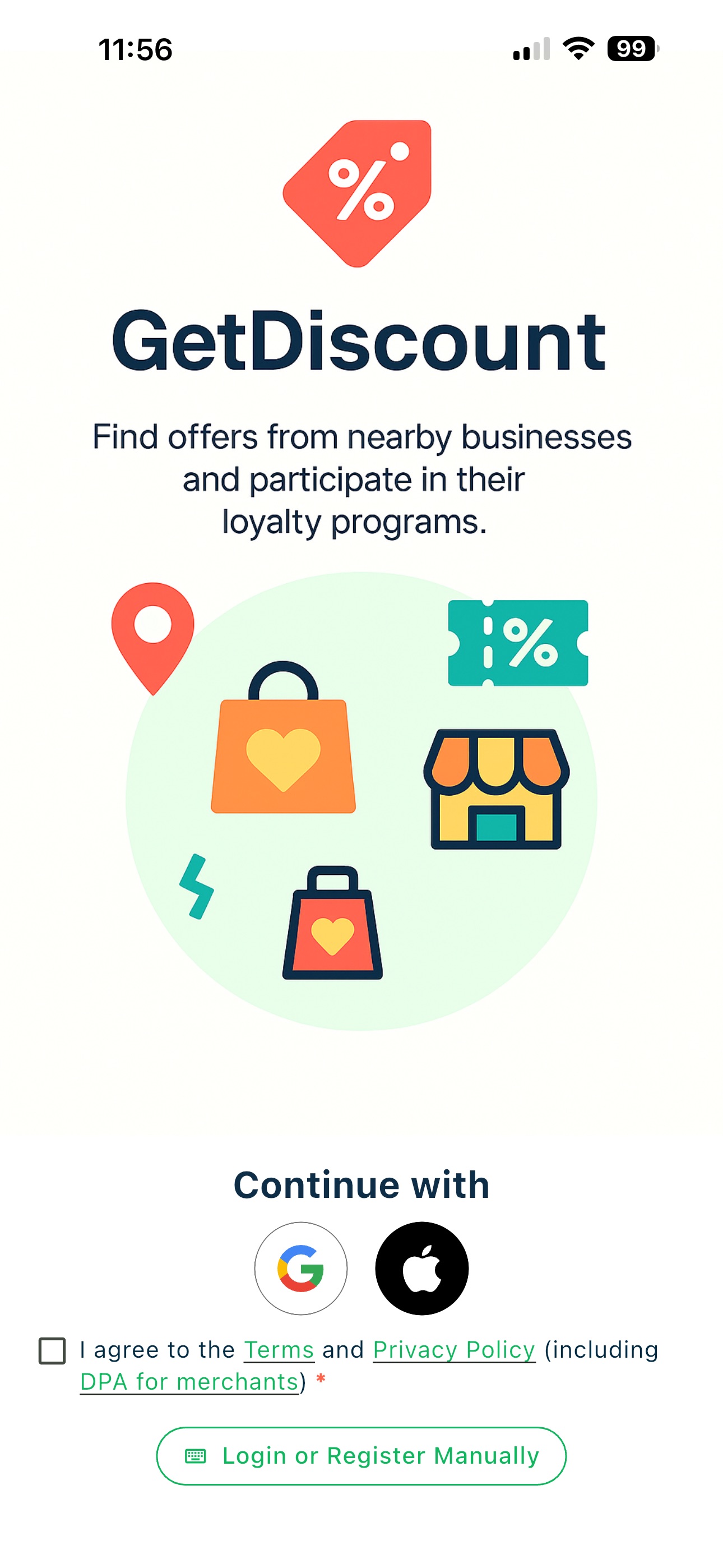 Social login buttons for Google and Apple
💡 Tip: If you signed up with email but want to switch to Google or Apple sign-in, use the same email address so the accounts link automatically.
Allow Location Access
After you sign in with Google or Apple, GetDiscount asks for location access. This permission is crucial for the app to show nearby businesses, discounts, and loyalty programs that are relevant to you.
First, review the in-app explanation:
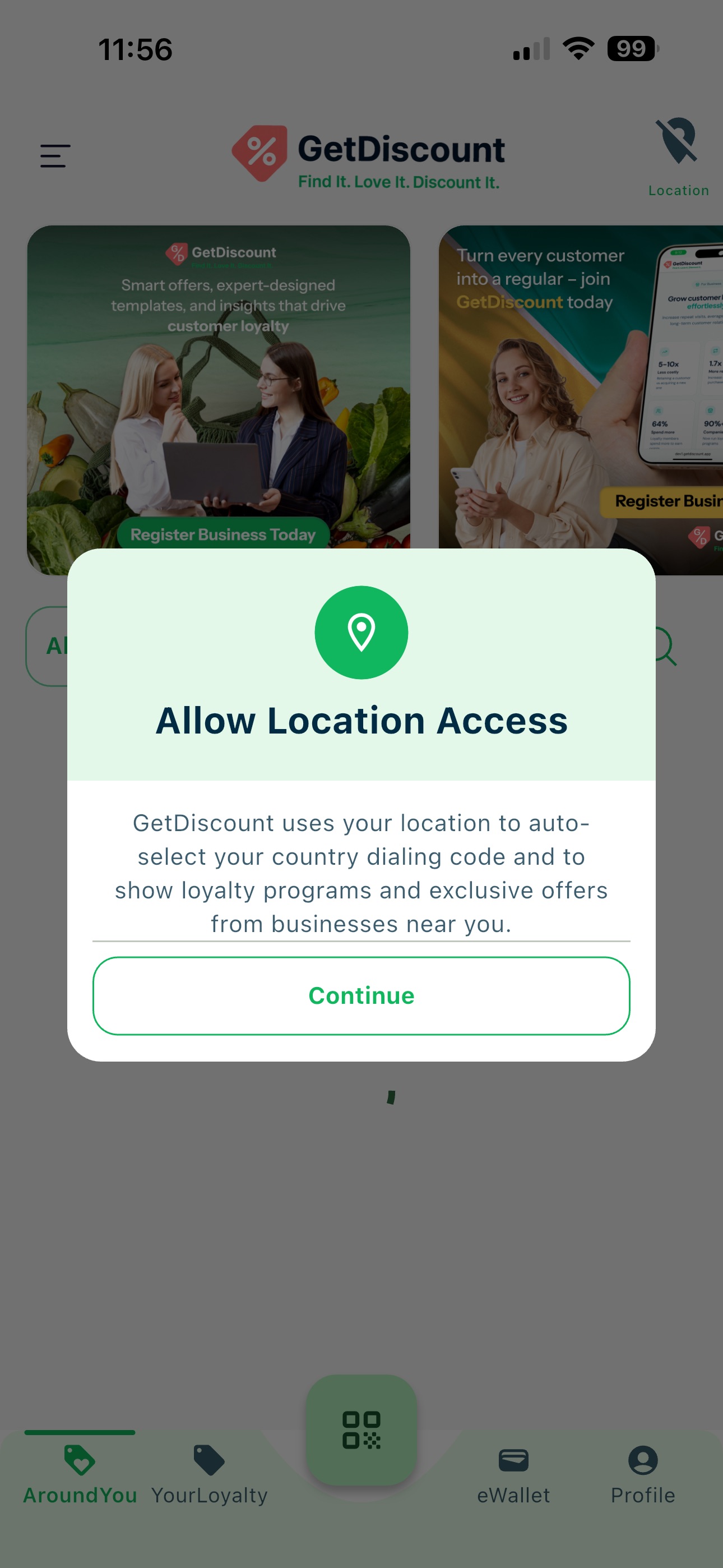 GetDiscount explanation of why location access is needed
Then tap Allow when iOS displays the system permission request:
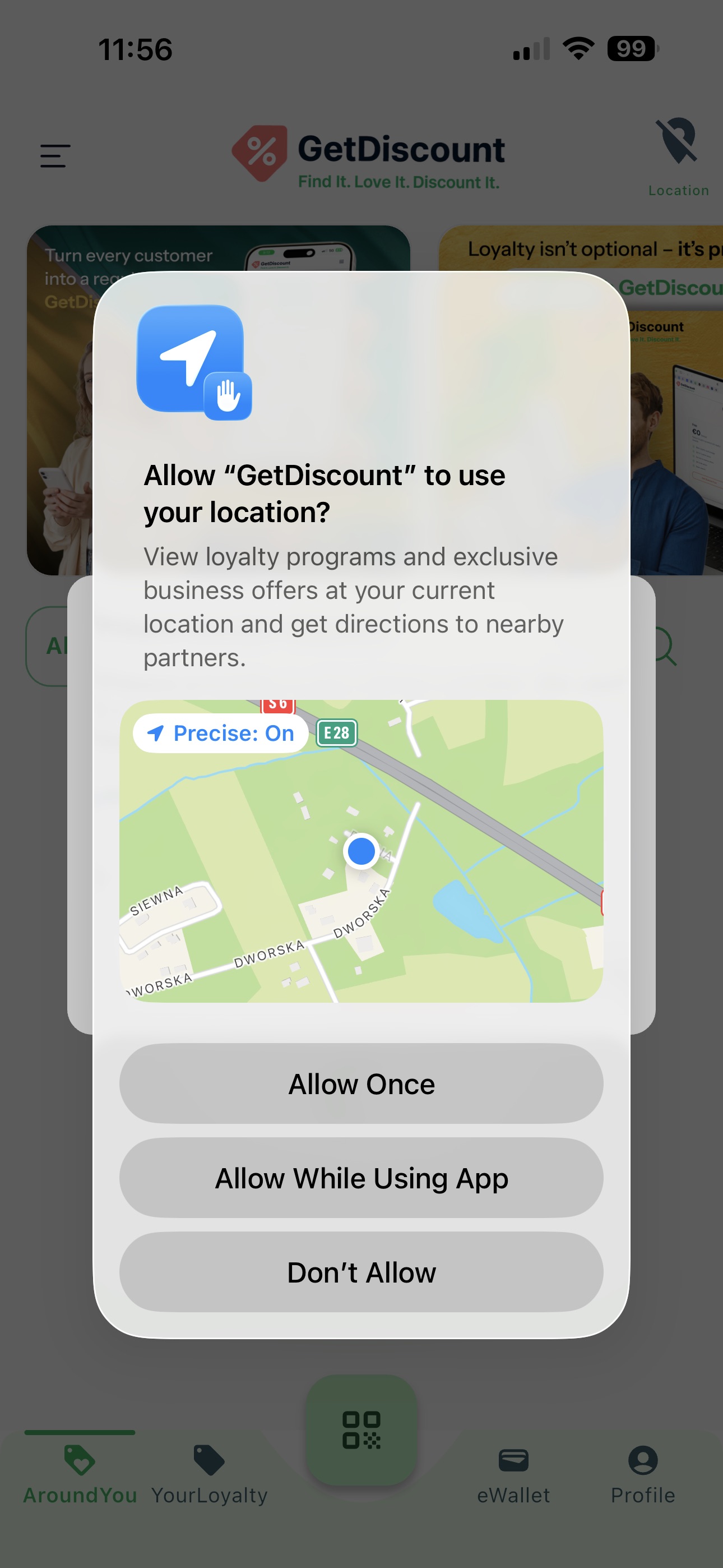 iOS location permission request
⚠️ Important: Location access is required for core app functionality. If you deny it, nearby businesses, local discounts, and location-based features may not work correctly. You can enable it later in Settings → Privacy & Security → Location Services → GetDiscount.
Phone Number & Password
On the initial screen select Login or Register Manually to see manual registration and login options.
Manual login button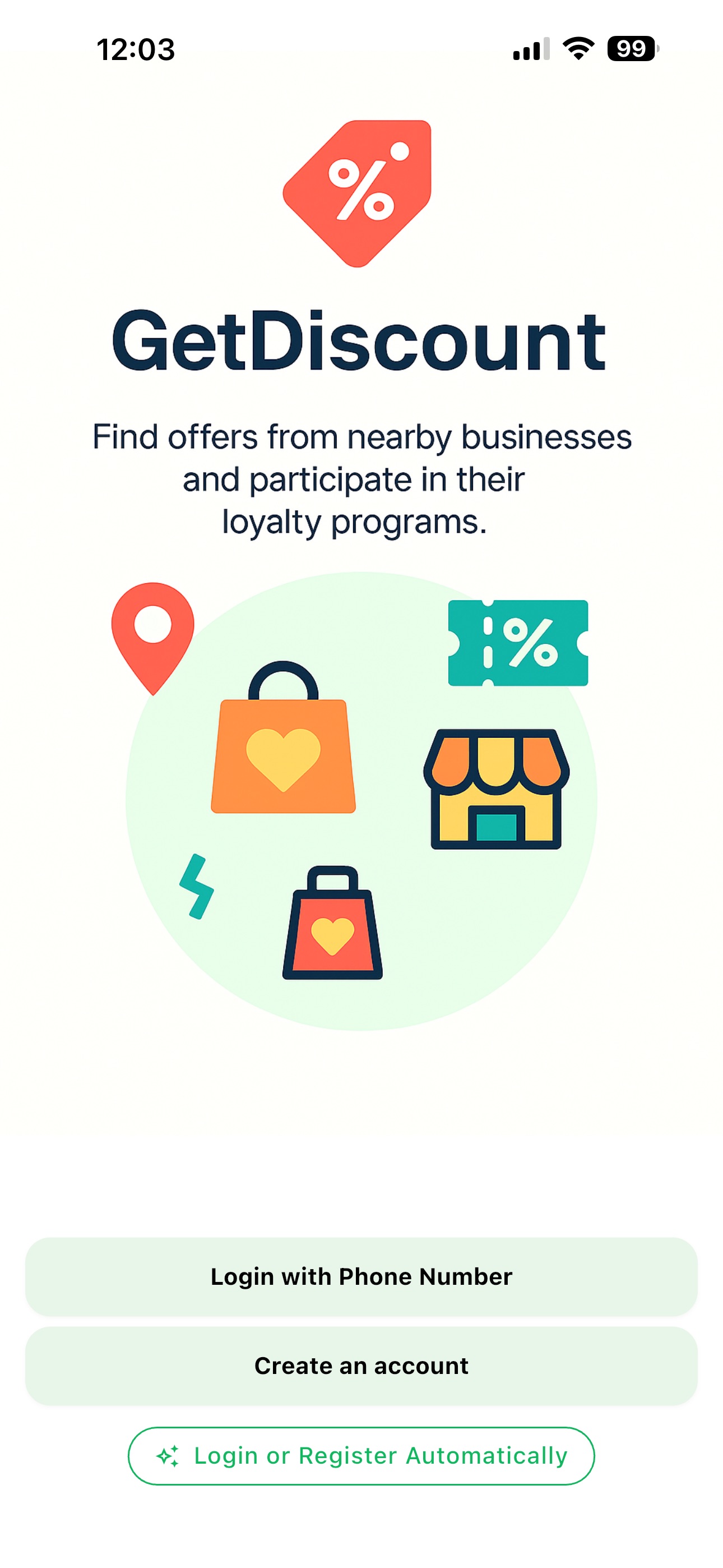 Manual login buttons for Login and Register
Click Login with Phone Number to open a screen enter your phone number and password, then tap Log In.
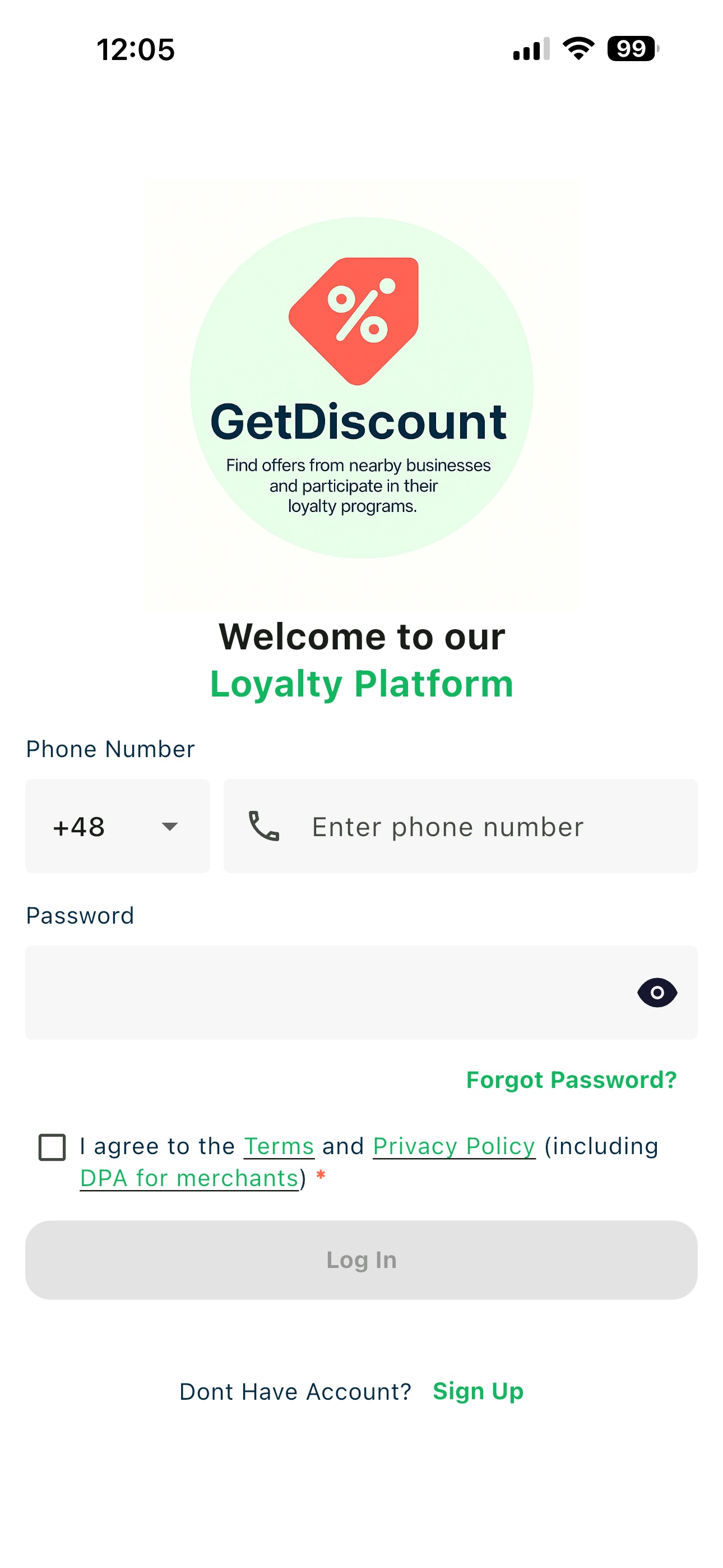 Login screen with the Phone Number and password fields highlighted
After signing in with your Phone Number and password, complete the Allow Location Access steps above. Location access is crucial for nearby businesses, local discounts, and other location-based features.
Forgot Password
On the login screen, tap Forgot password?, enter your account email, and tap Send reset link.
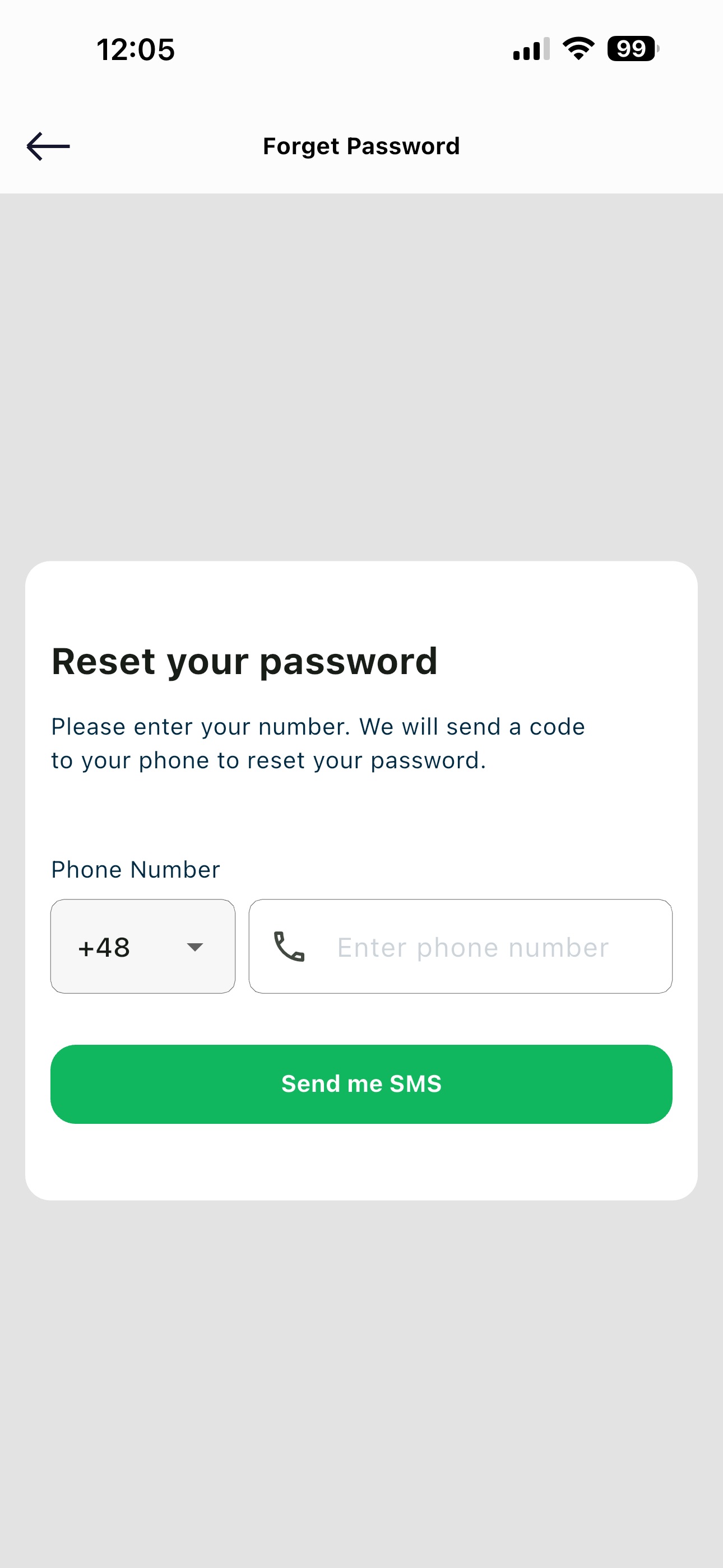 Forgot password screen with the reset link field highlighted
Choose a New Password
Open the reset email, tap the link, and enter a new password. You'll be logged in automatically once it's saved.
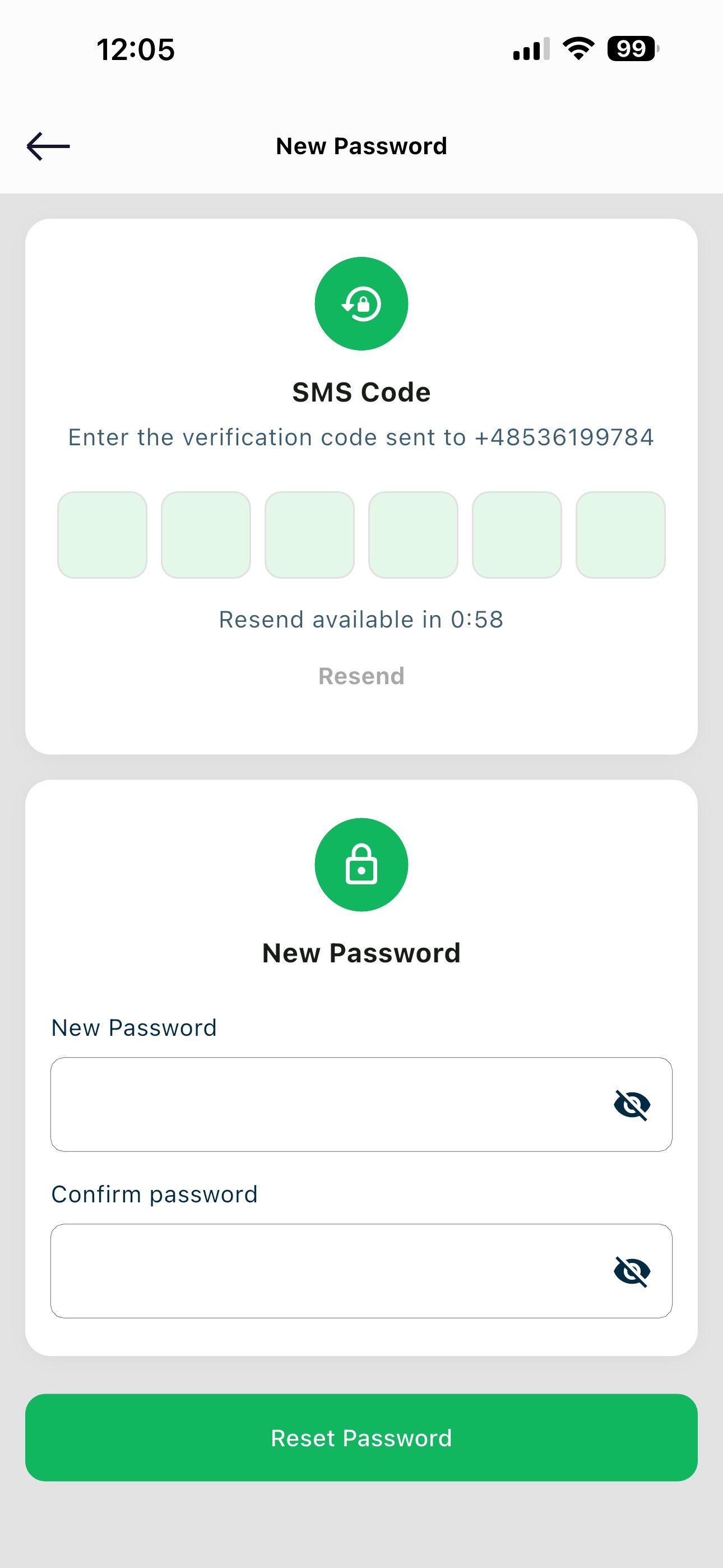 Reset password form with the new password field highlighted
Update Account Details
Go to Account Settings to update your name, email, phone number, or profile photo.
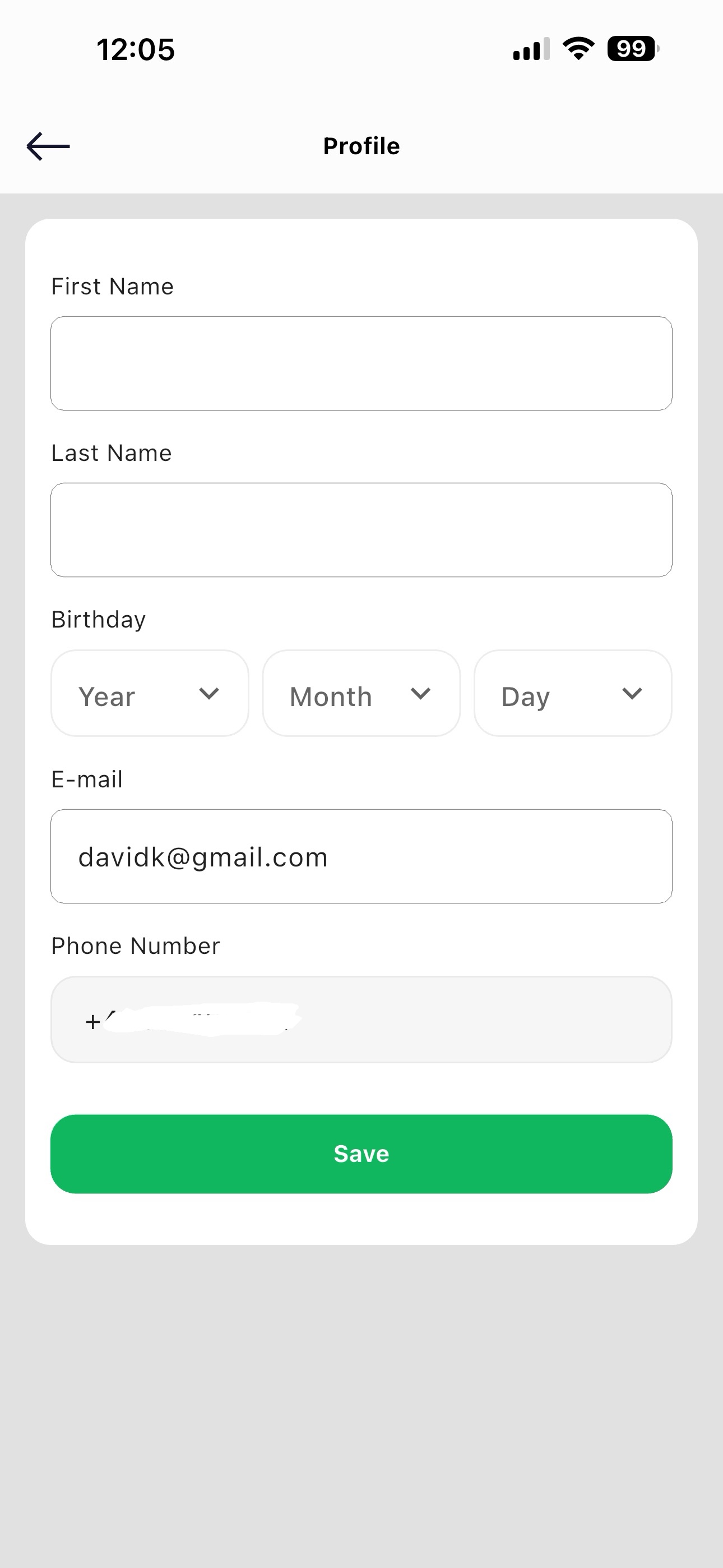 Account settings screen with the edit profile fields highlighted
Change Password
From Account Settings, tap Change Password, enter your current password, then your new one.
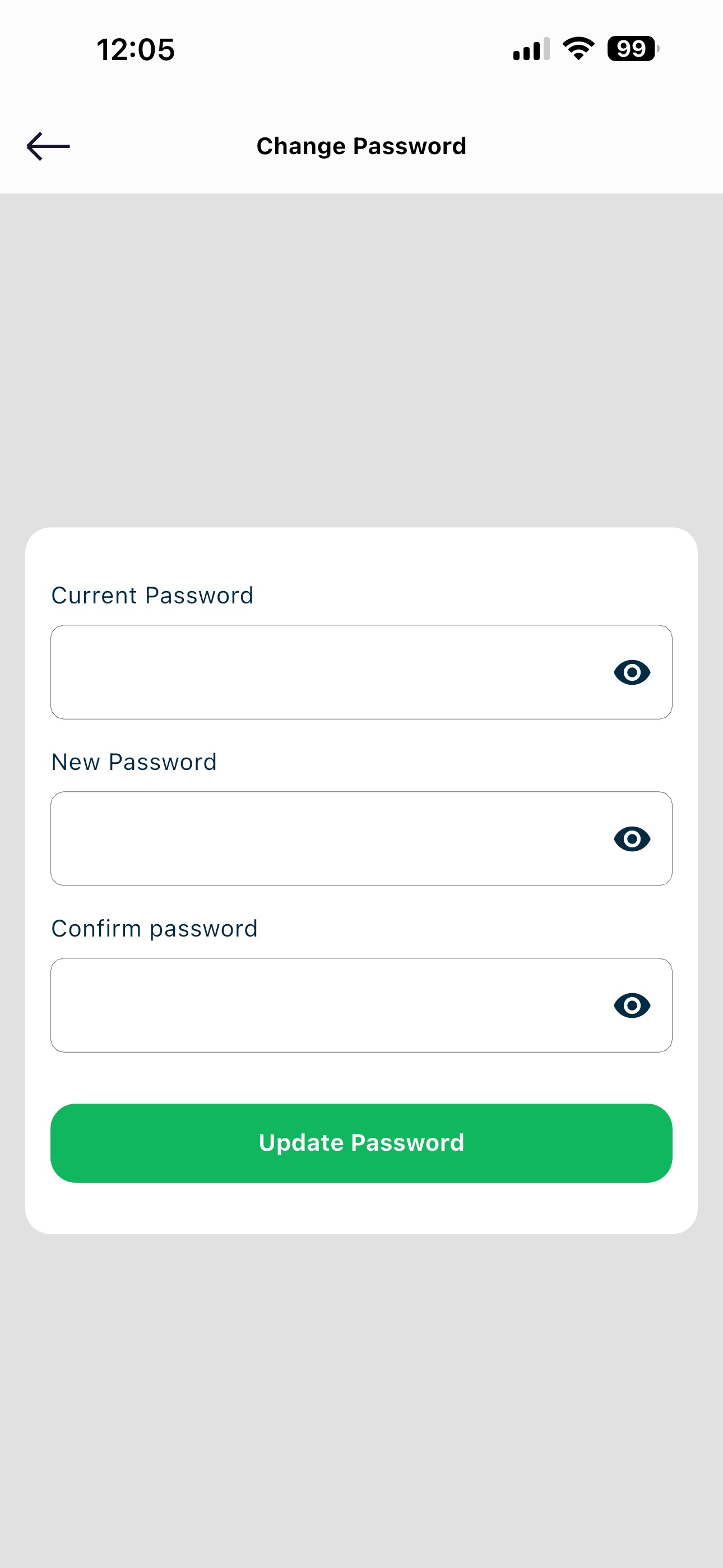 Change password form inside account settings
️ Delete Account
Need to leave? Go to Account Settings → Delete Account. This permanently removes your profile, saved cards, and reward history.
| Guide | Description |
|---|---|
| For Clients | How to find deals, store cards & earn rewards |
| For Businesses | How to list your business and create loyalty programs |
Need help? Visit our Support page.
Social Login (SSO)
Tap Continue with Google or Continue with Apple to sign in instantly using an existing account — no password required. The first time you use this, GetDiscount creates your account automatically using the email from your Google or Apple ID.