
Getting Your Business Listed
Import your business from Google Maps in a few minutes. GetDiscount fetches the basic business details, then verifies that you are authorised to manage the listing.
GetDiscount makes it simple to bring an existing business into the platform. Import a Google Maps listing, verify ownership by SMS, select a category, and continue as the business owner. This workflow is suitable for businesses across many categories and avoids re-entering the basic information already available in Google Maps.
You need:
- A GetDiscount account
- Access to the phone number registered for your business on Google Maps
- The business name or listing you want to import
⚠️ Important: GetDiscount sends an SMS verification code to confirm business ownership. Make sure you can access the Google-registered phone number before you begin.
Open the Main Screen
After you sign in, open the GetDiscount app main screen. Tap Profile in the bottom navigation.
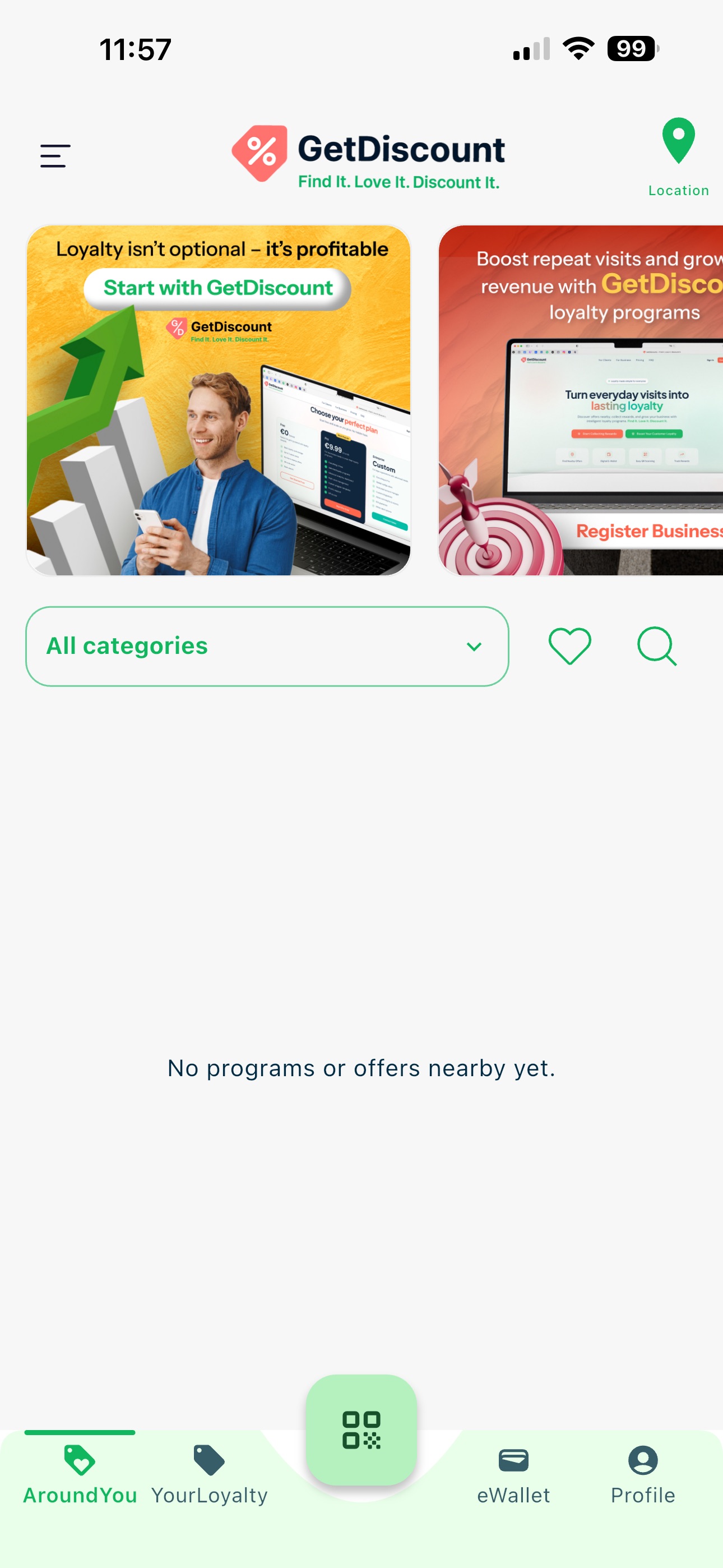 GetDiscount main screen with the Profile tab available
Open Your Profile
On your Profile screen, tap Register business.
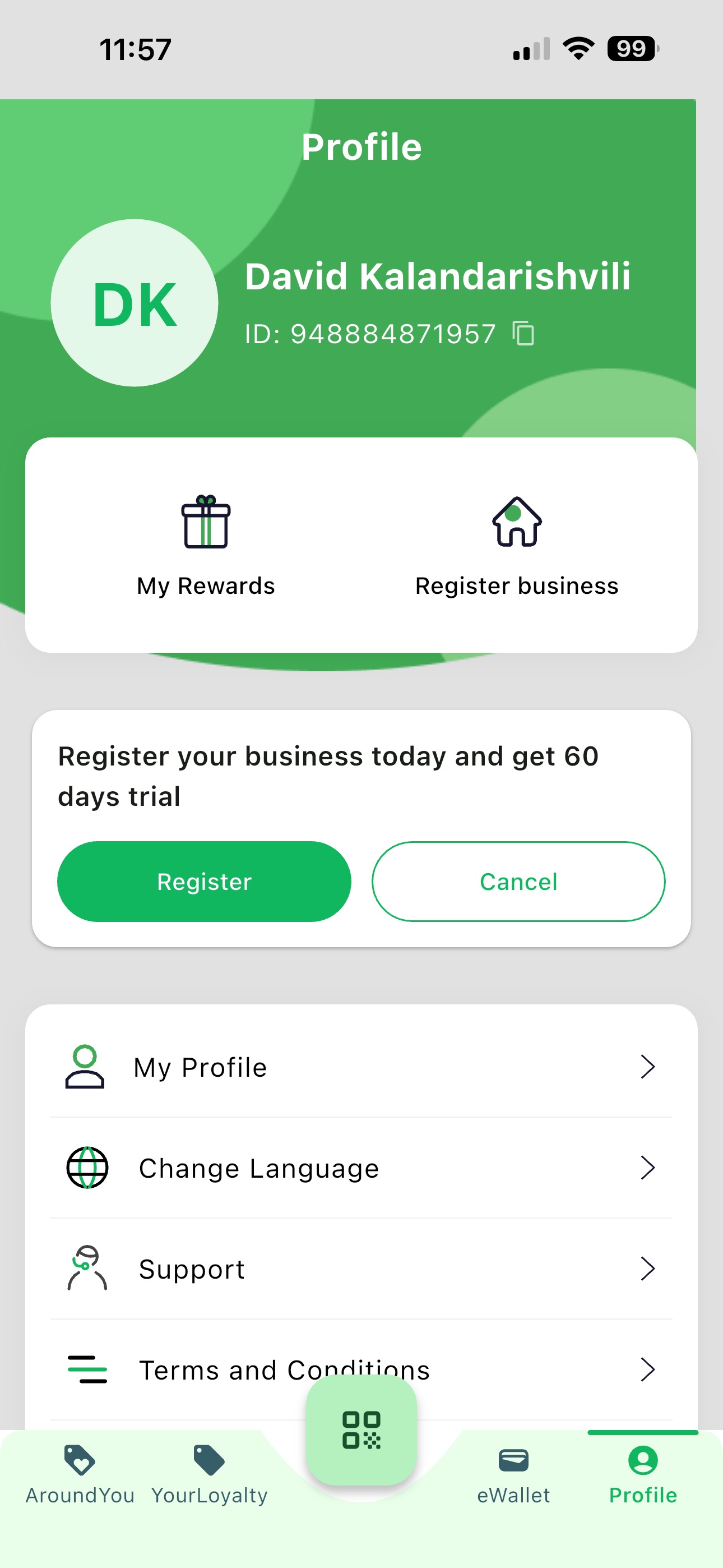 Profile screen with Register business highlighted
Choose Google Maps Import
GetDiscount asks how you want to create your business. Tap Import from Google Maps to use the faster setup, or choose Manual creation if your business is not listed on Google Maps.
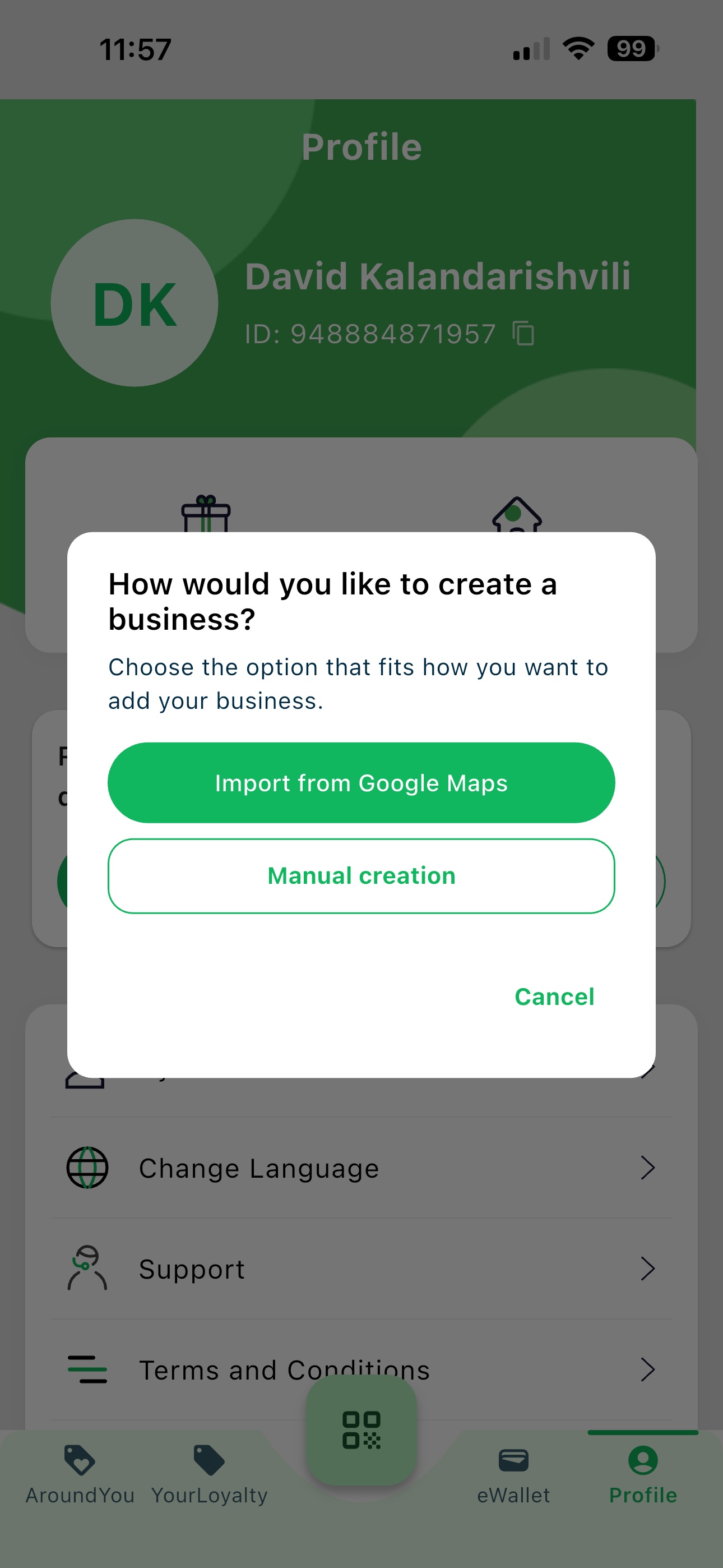 Business creation options with Import from Google Maps highlighted
Search for Your Listing
On the Google Maps import screen, enter at least three characters of your business name in Search Google Maps. Search using the name under which the business is registered on Google Maps.
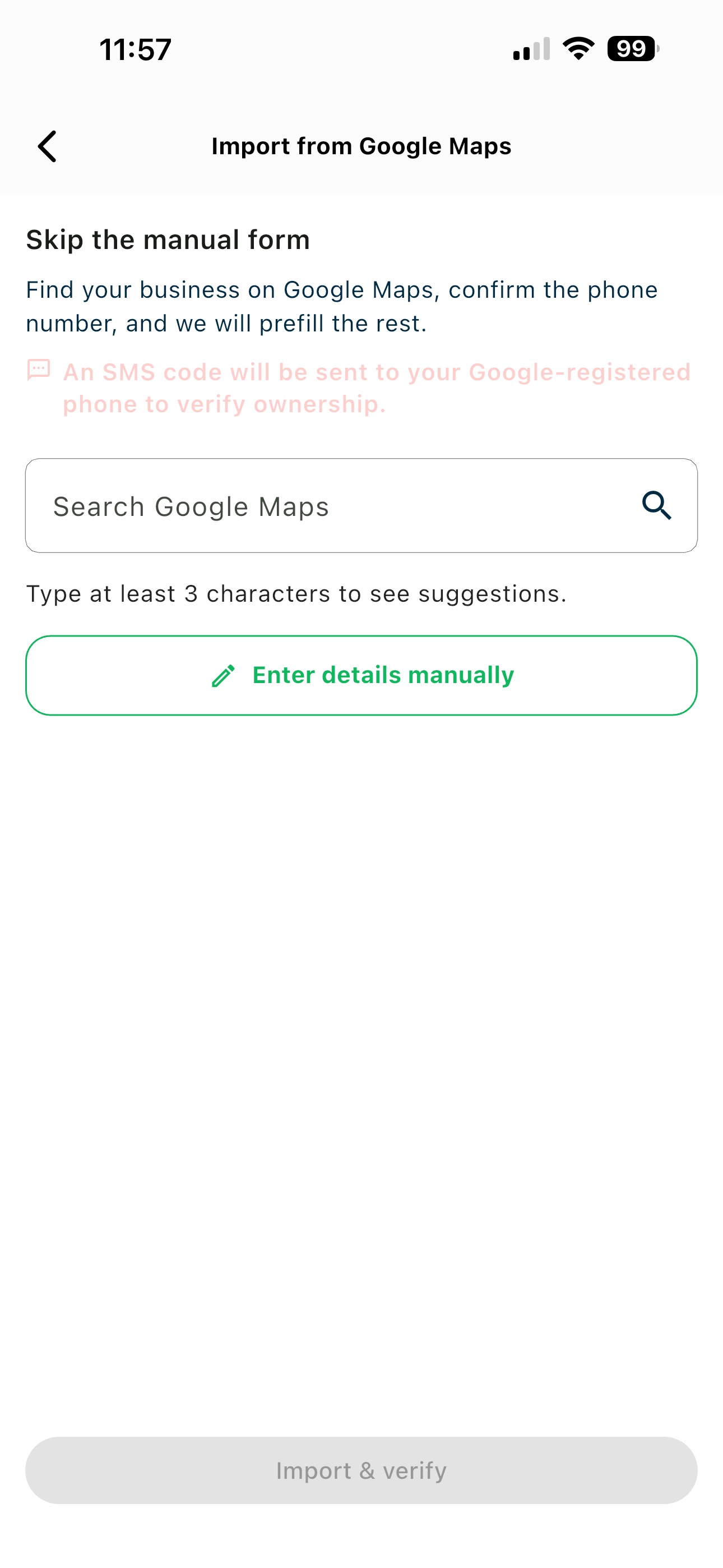 Google Maps import screen with the search field ready
💡 Tip: Use the official listing name and include enough of the name to make the correct result easy to identify.
Review Search Results
As you type, GetDiscount displays matching Google Maps listings with their addresses. Compare the name and address carefully before selecting a result.
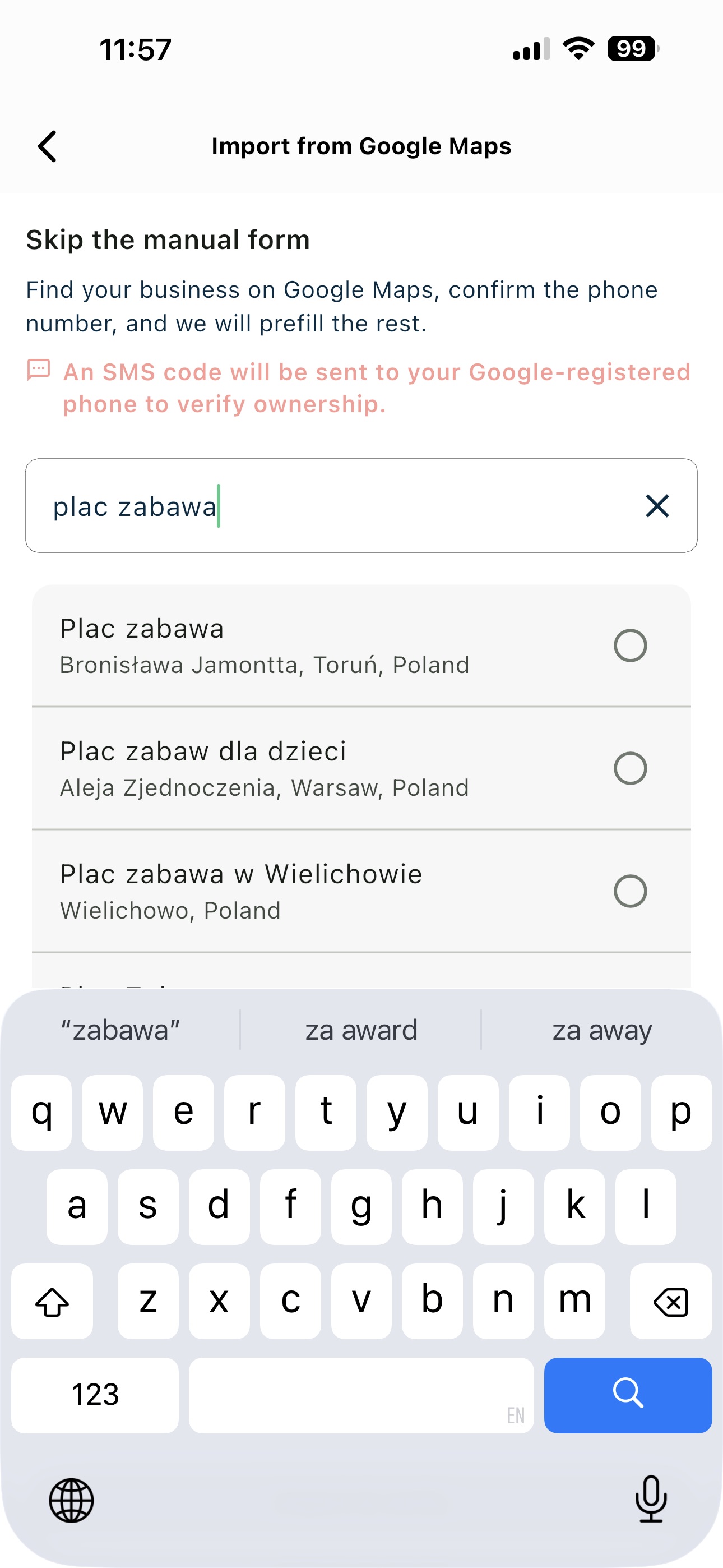 Google Maps search field with business suggestions
Tap the radio button next to the correct listing.
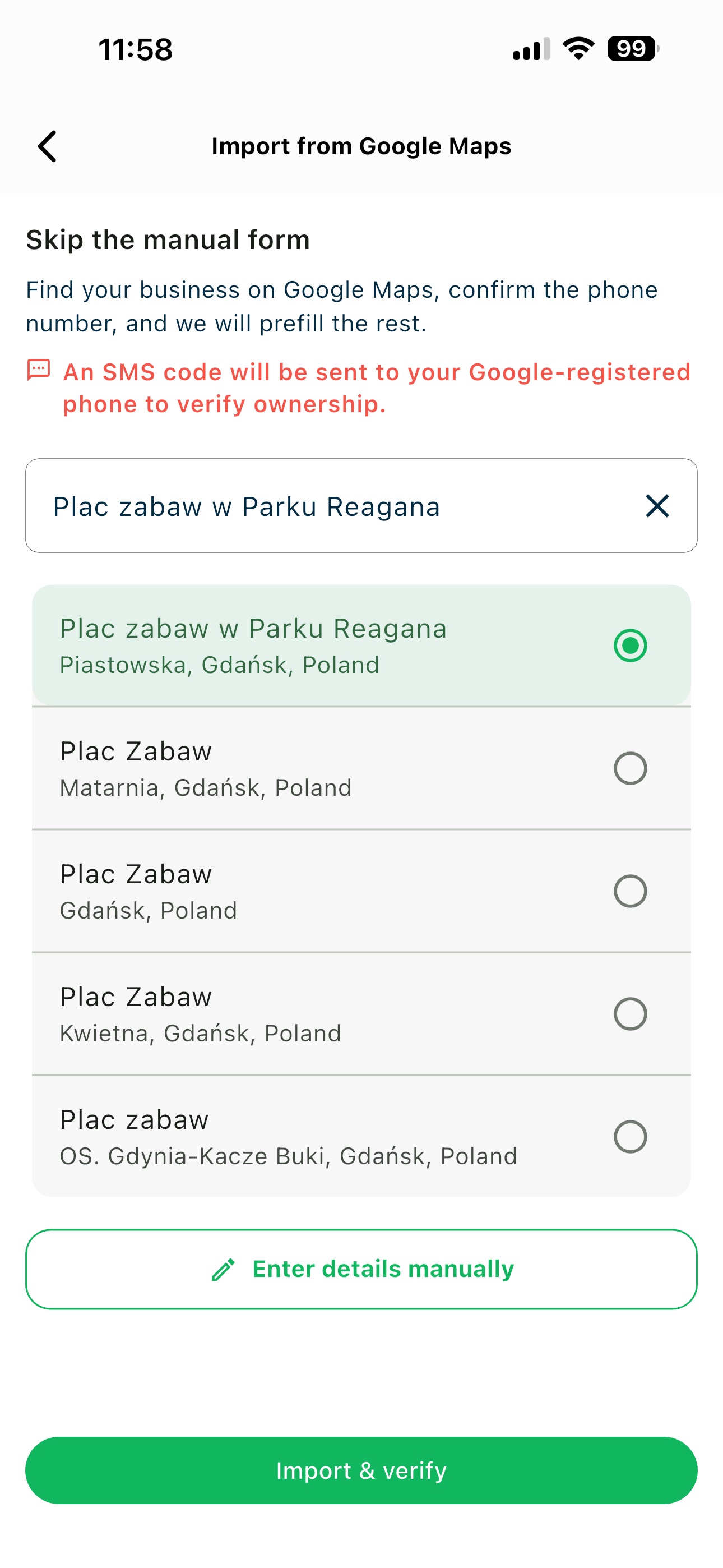 Google Maps results with the correct business selected
Confirm the Phone Number
GetDiscount sends an SMS code to the phone number registered for the selected business on Google Maps. This confirms that you are authorised to manage the business.
🔐 Ownership check: The SMS verification is required even when the business listing is visible publicly. It protects businesses from being claimed by someone else.
️ If Google Maps Has No Phone Number
If the selected Google Maps listing does not contain a phone number, GetDiscount opens the Phone Number Missing on Google Maps dialog. Select the country code, enter a phone number you can access, and tap Import & Verify.
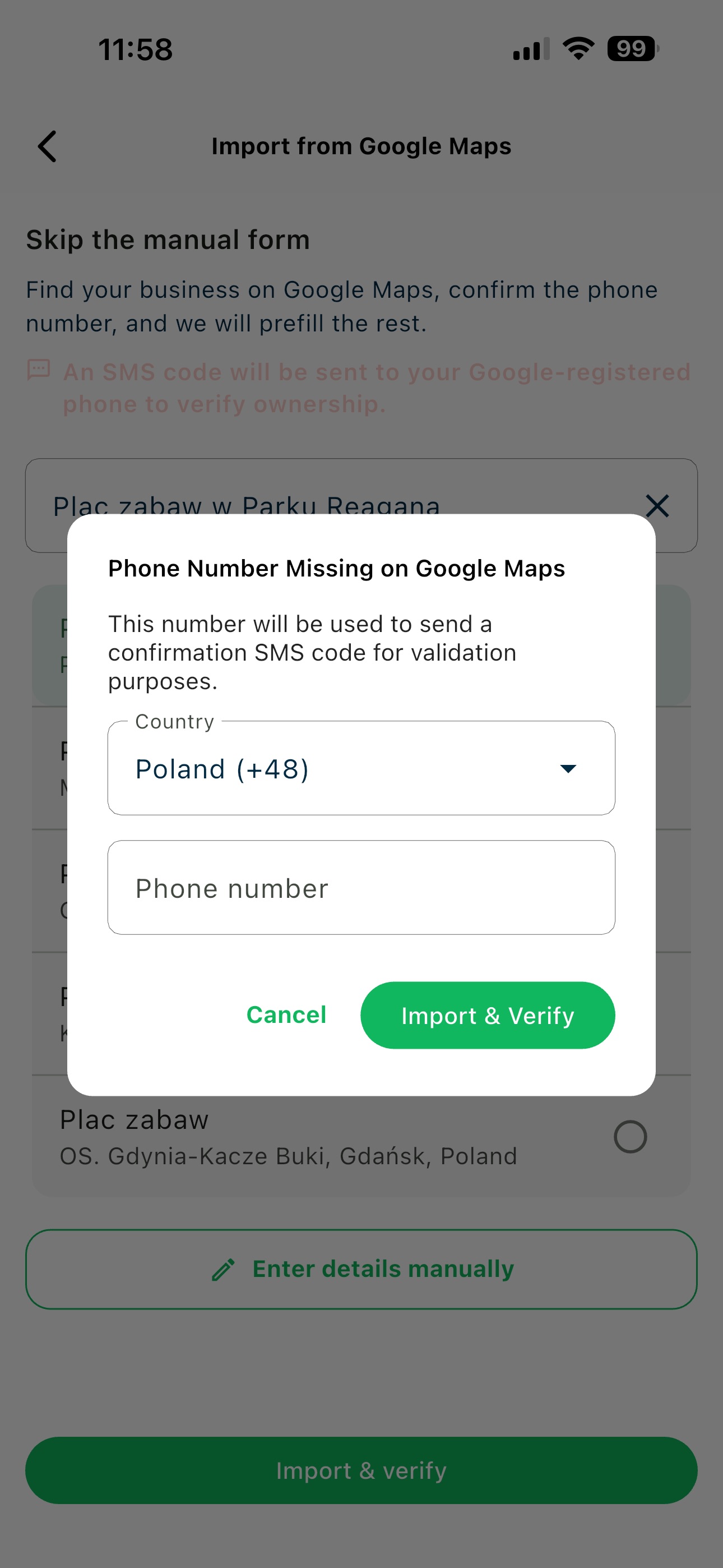 Dialog for entering a phone number when Google Maps has no number
The number you enter is used only for the confirmation SMS in this verification step.
Enter the SMS Code
When the code dialog appears, enter the six-digit SMS code sent to the registered or manually provided phone number, then tap Confirm.
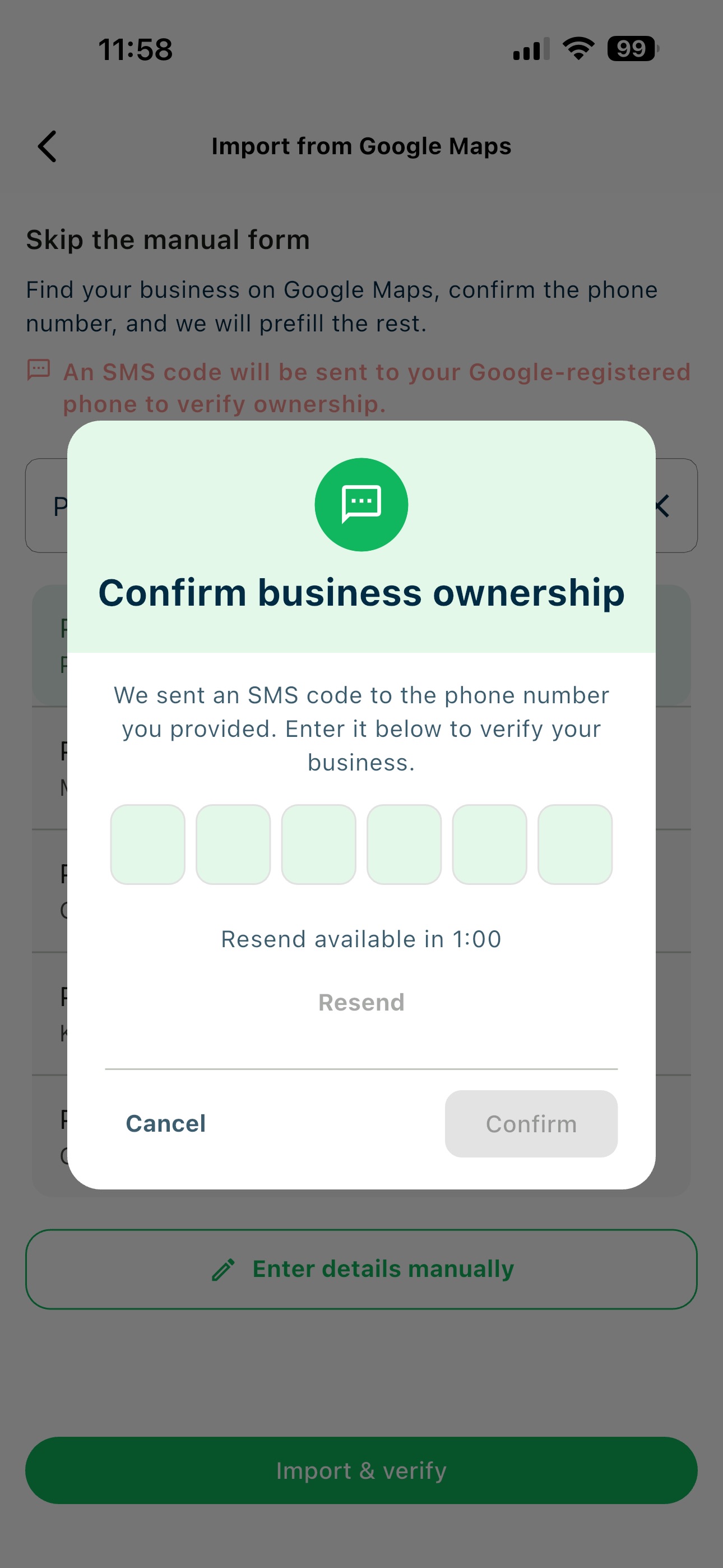 Business ownership confirmation dialog for entering the SMS code
💡 Tip: If you do not receive the code, wait until the resend timer finishes before requesting another code. Check that the phone number and country code are correct.
️ Select a Business Category
After ownership is confirmed, GetDiscount imports the available business information from Google Maps and opens the update form. A Business category is required because it helps customers find your business.
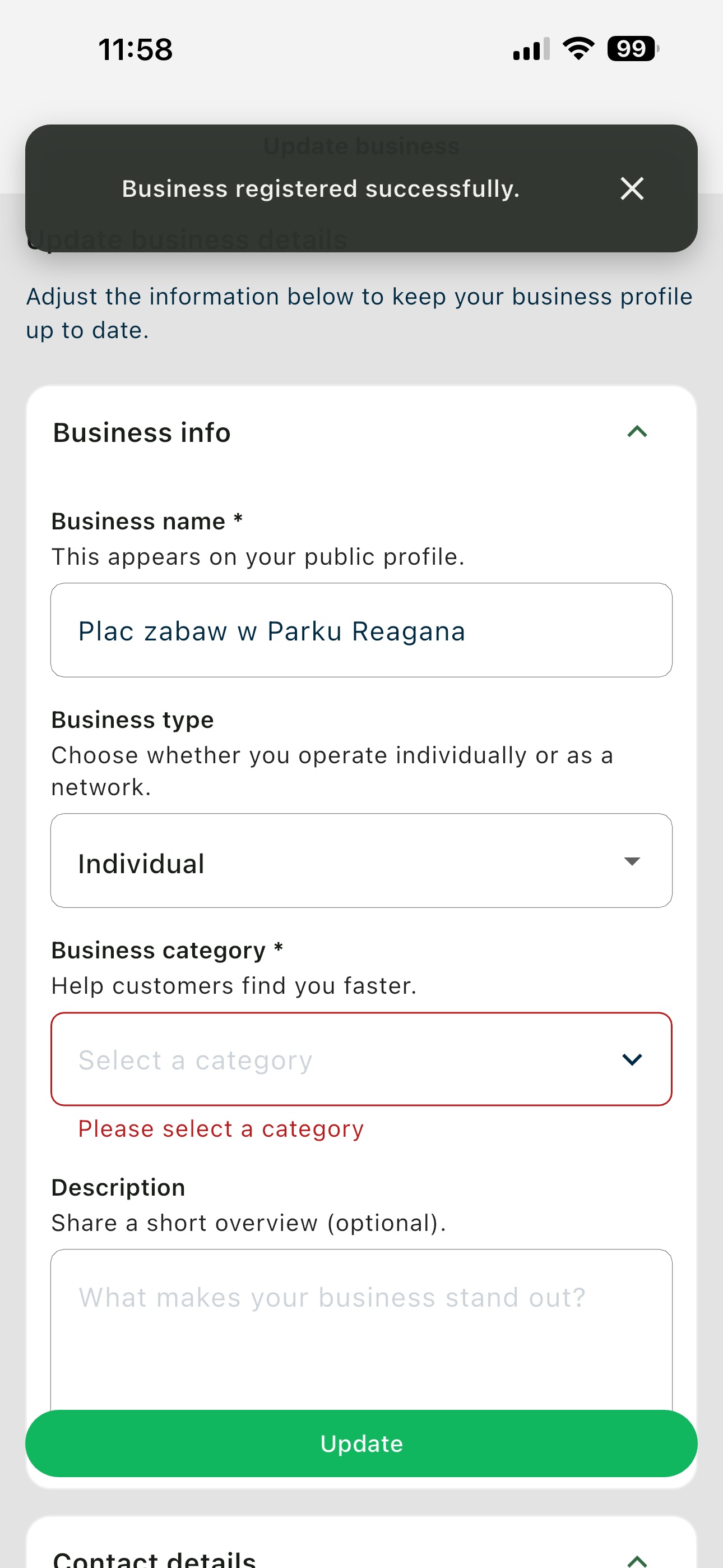 Imported business details with the required category still missing
Choose the category that best describes your business. You cannot complete the import without selecting one.
Review and Update
Review the imported business name and the selected category. You may also add an optional description. Contact details imported from Google Maps are shown as read-only and cannot be modified in this form.
Tap Update to finish creating the business.
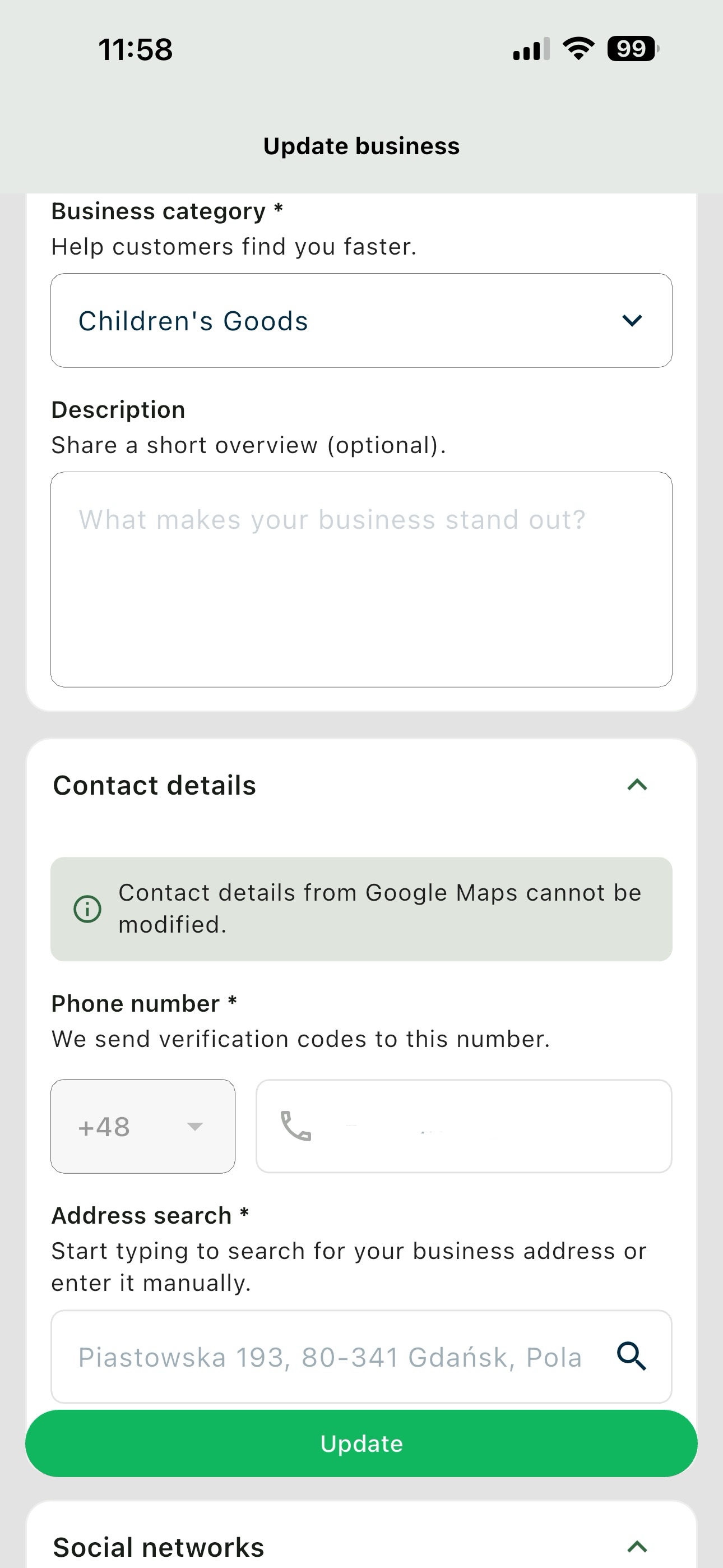 Imported business details with the business category selected
Business Created Successfully
After you tap Update, GetDiscount confirms that the business was registered successfully and changes your account to the business owner role. Your new business appears on the owner home screen.
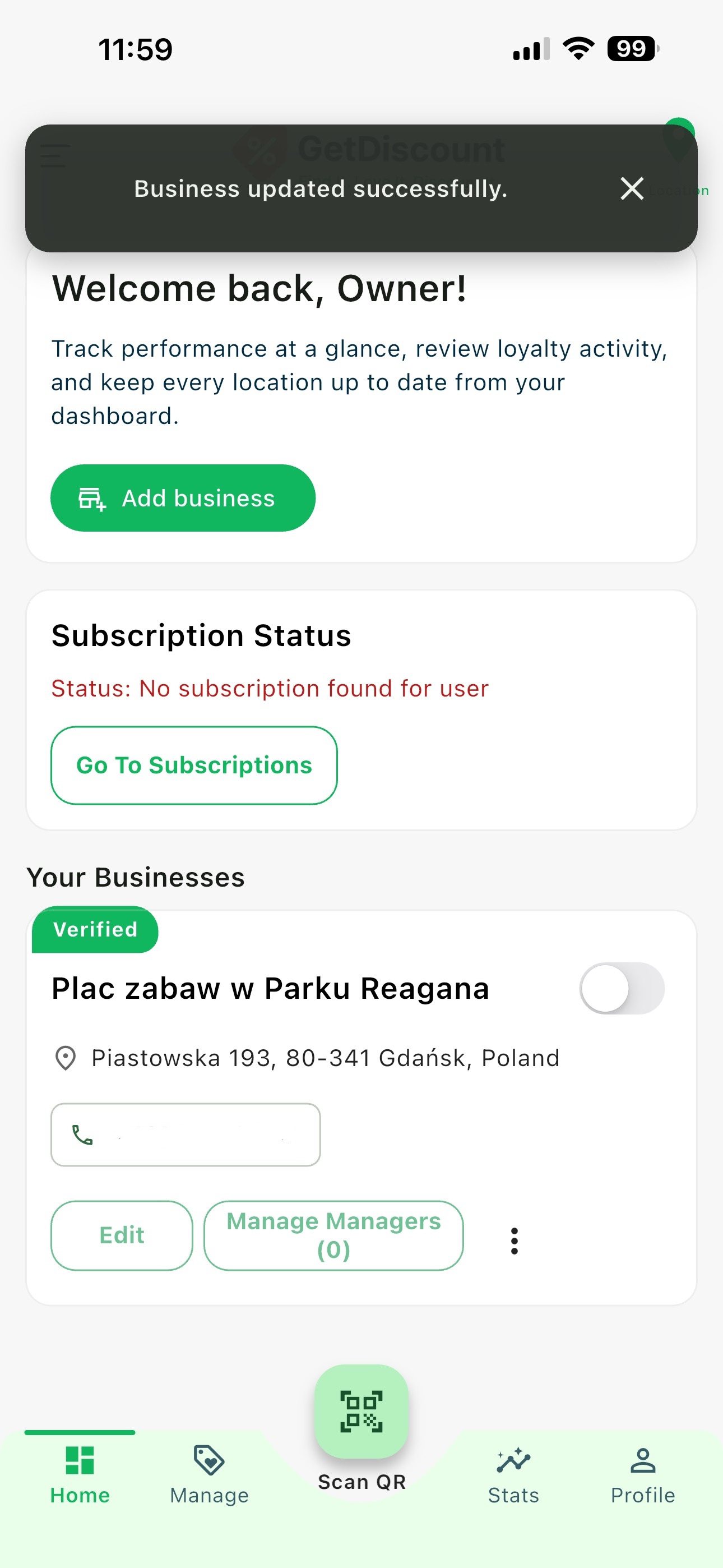 Owner home screen showing the imported business
⚠️ Important: A newly imported business is disabled by default in GetDiscount. Completing ownership verification creates the business, but does not make it active for customers. Enable the business from the owner dashboard only after reviewing its details and completing the required setup.
| Problem | What to check |
|---|---|
| No search results | Confirm the business is listed on Google Maps and try the official listing name. |
| No SMS received | Check the Google-registered phone number, country code, signal, and resend timer. |
| Google listing has no phone number | Use the phone number dialog to provide a number you can access. |
| Import cannot be completed | Select a business category before tapping Update. |
| Business is not visible to customers | Check the business toggle in the owner dashboard; new businesses are disabled by default. |
Need help? Visit our Support page.