
Set Up Your Business License
A GetDiscount business license unlocks business owner operations. Purchase and manage licenses securely through the web portal, then return to the mobile app to begin setting up your business.
After registering a business, your account becomes a business owner account. A valid license is required before you can enable the business, create loyalty programs, or perform other business owner operations.
License Required Message
If you attempt an operation that requires a license, GetDiscount displays a message explaining that no active subscription is available. Tap Go to Subscription to review your license status.
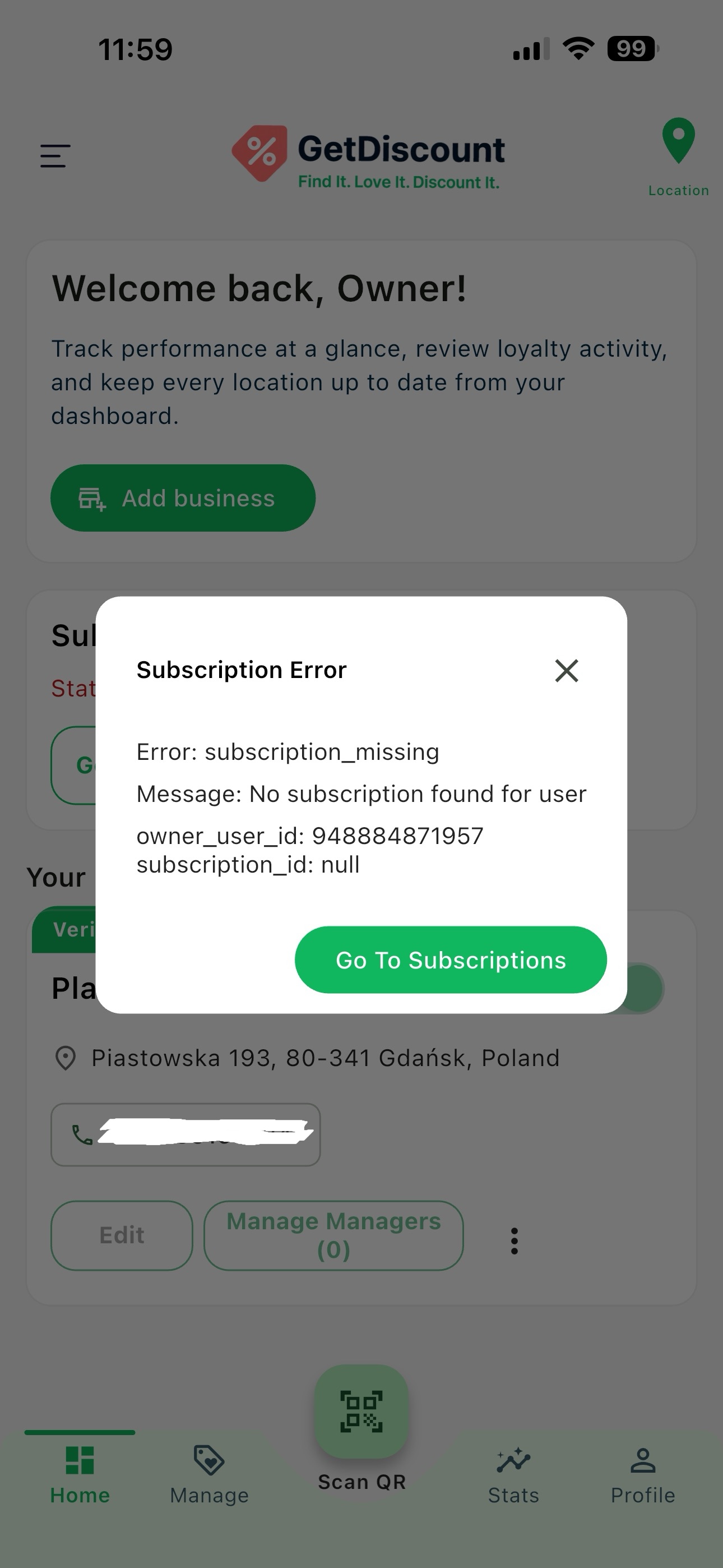 License required message with a button to open subscriptions
License Notice on the Owner Home Screen
The owner home screen also displays a notice when the business has no active license. Tap Go to Subscription to open the subscription overview.
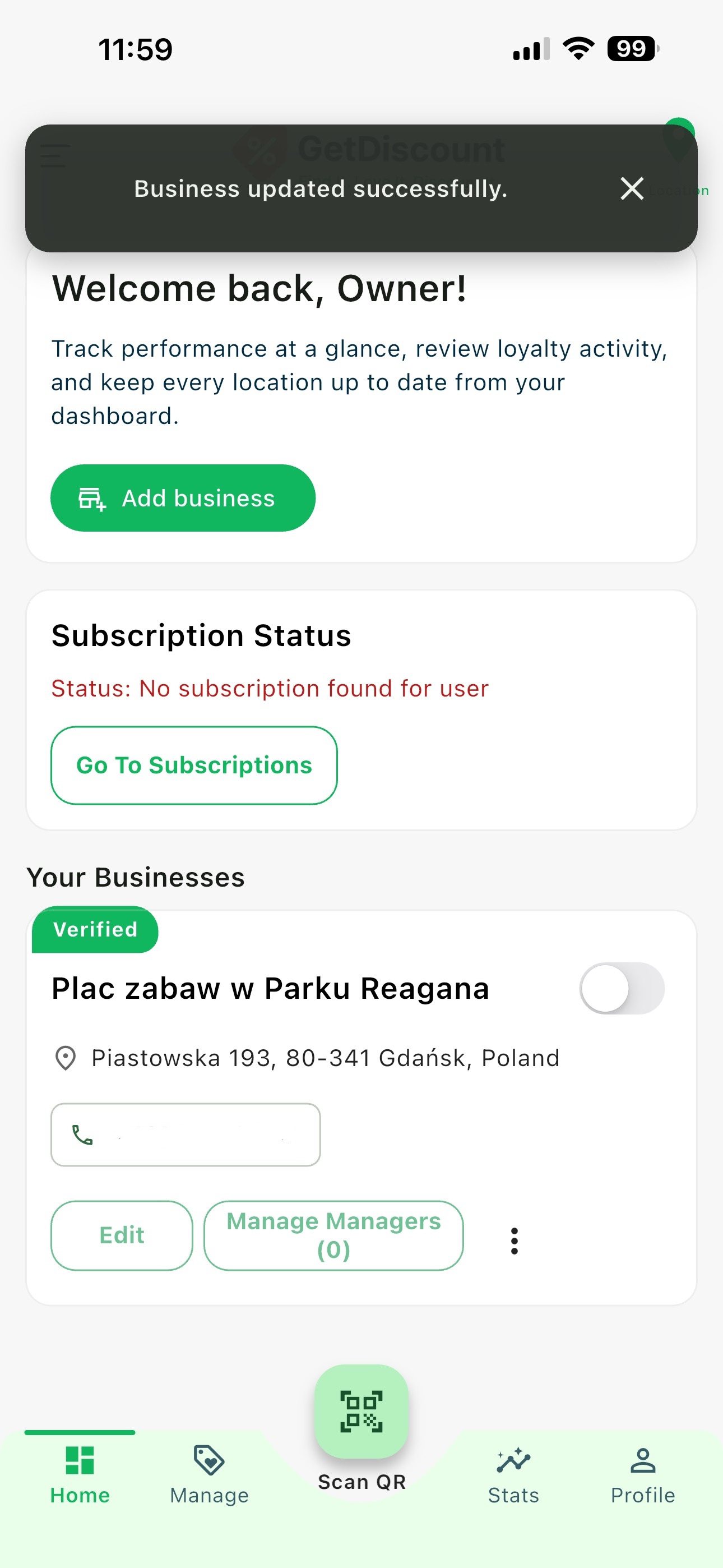 Owner home screen with a no-license notice and Go to Subscription button
Review Your License Status
The subscription overview shows that no license is assigned yet. Tap Account setup to begin.
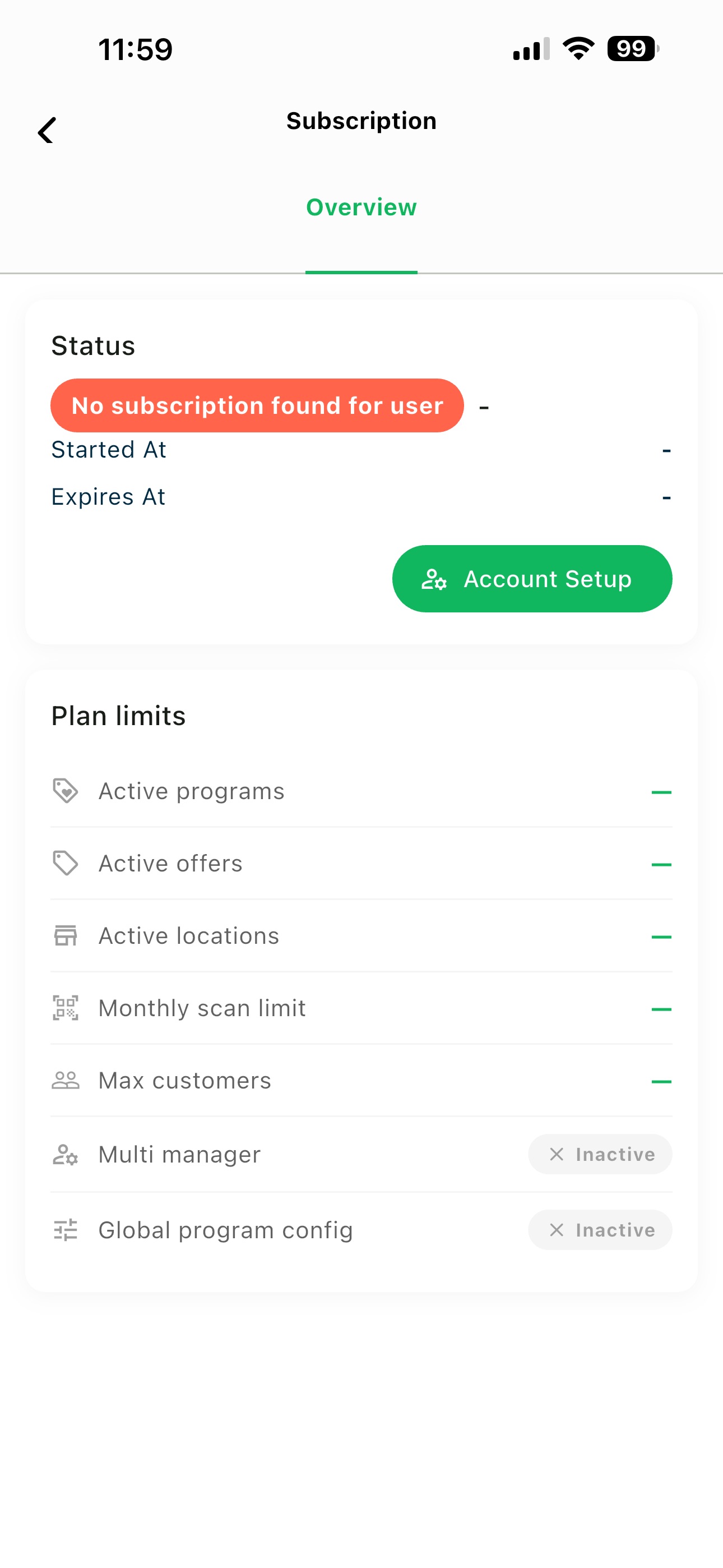 Subscription overview showing that no license is assigned
License Purchases Are Completed on the Web
GetDiscount supports license provisioning through the web portal. When you tap Account setup in the mobile app, a dialog explains how to continue on the web.
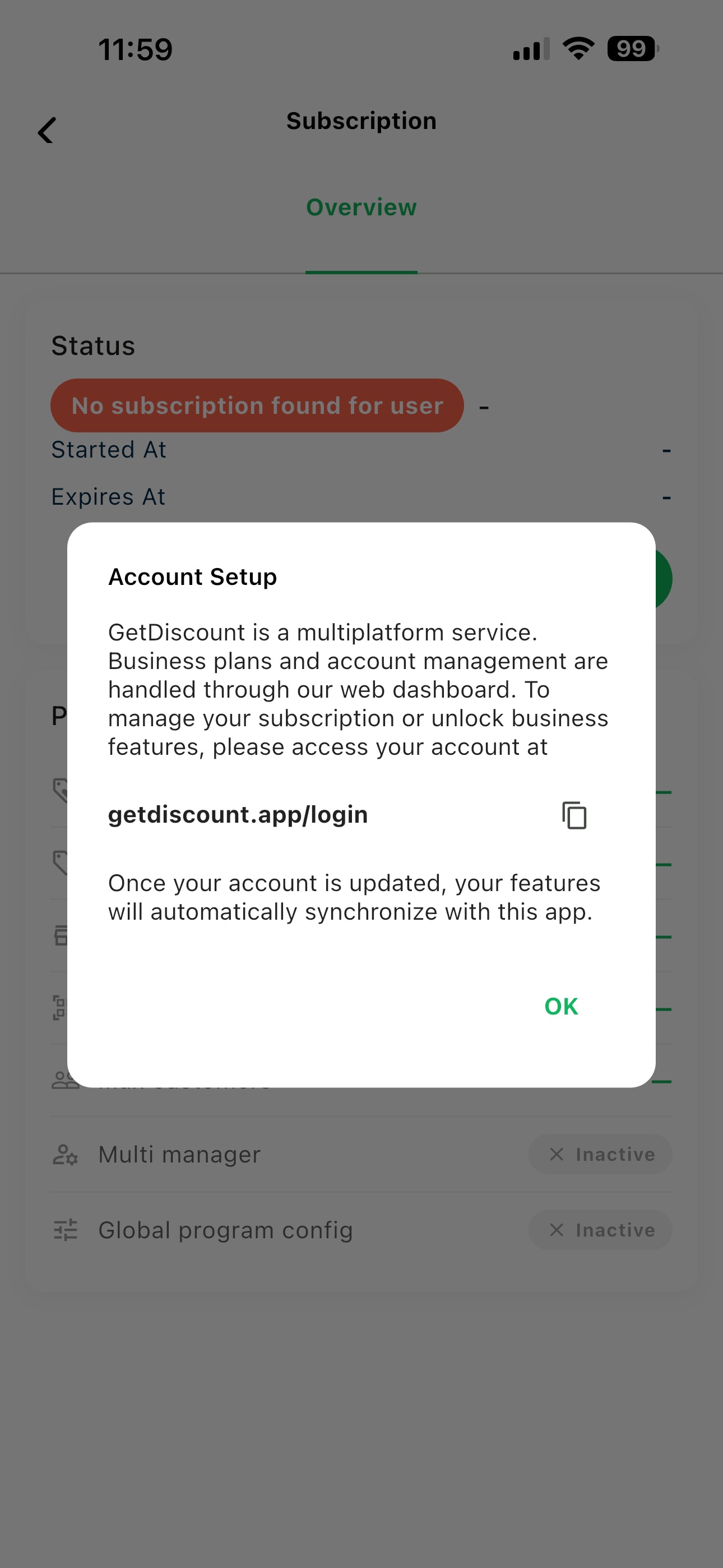 Mobile dialog explaining that licenses are available through the web portal
Use the URL shown in the dialog by tapping the copy icon and pasting it into your browser. You can also open your browser and go directly to getdiscount.app/login.
💡 Tip: You may complete the web steps on any desktop or mobile browser. Use the same GetDiscount account that owns the business.
Sign In on the Web
Open the web login page and sign in with the same method you use in the mobile app: Google, Apple, or your phone number and password.
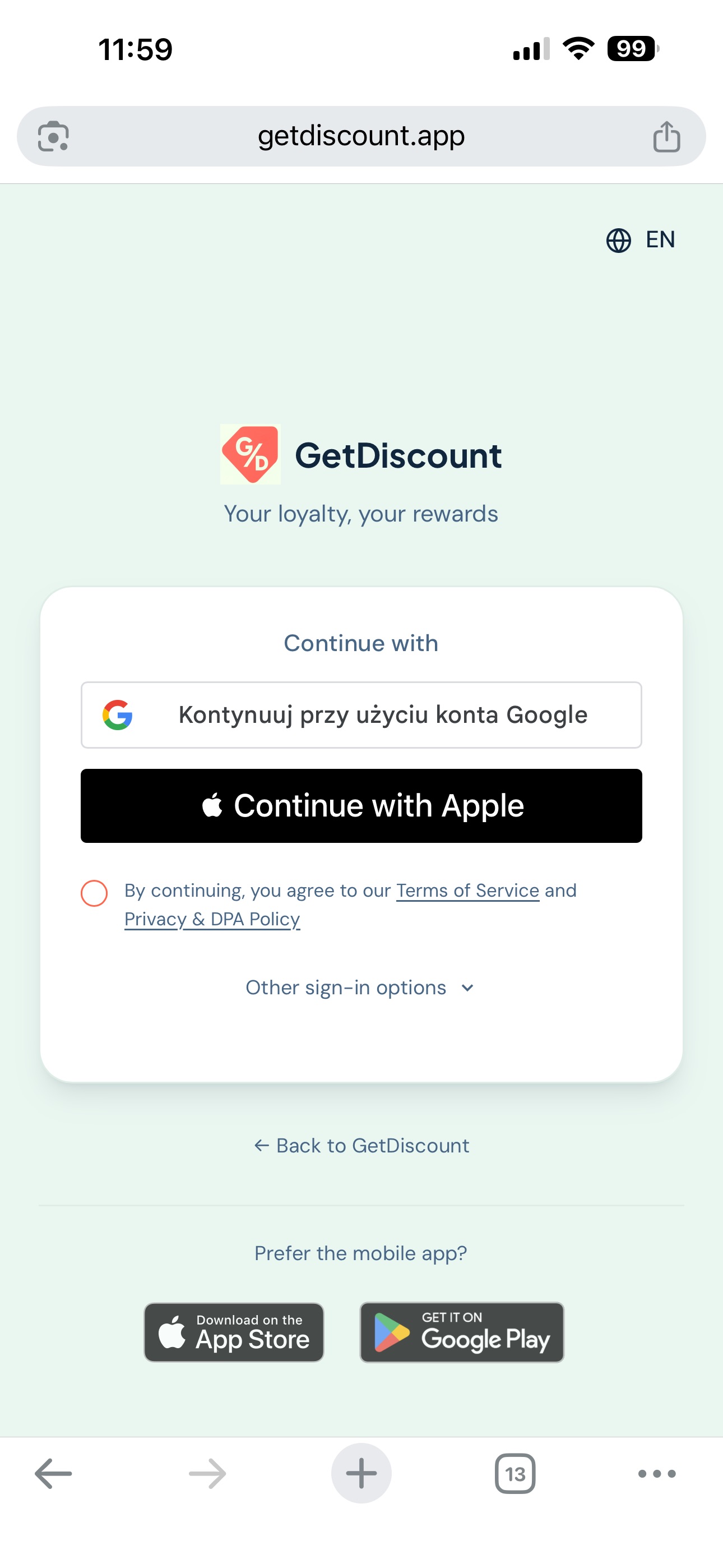 GetDiscount web login screen
⚠️ Important: Sign in with the business owner account. Using a different account will not show or assign the license to your business.
Open Subscription from the Web Dashboard
After you sign in, the web portal displays the owner dashboard and a no-license notice. Tap Go to Subscription.
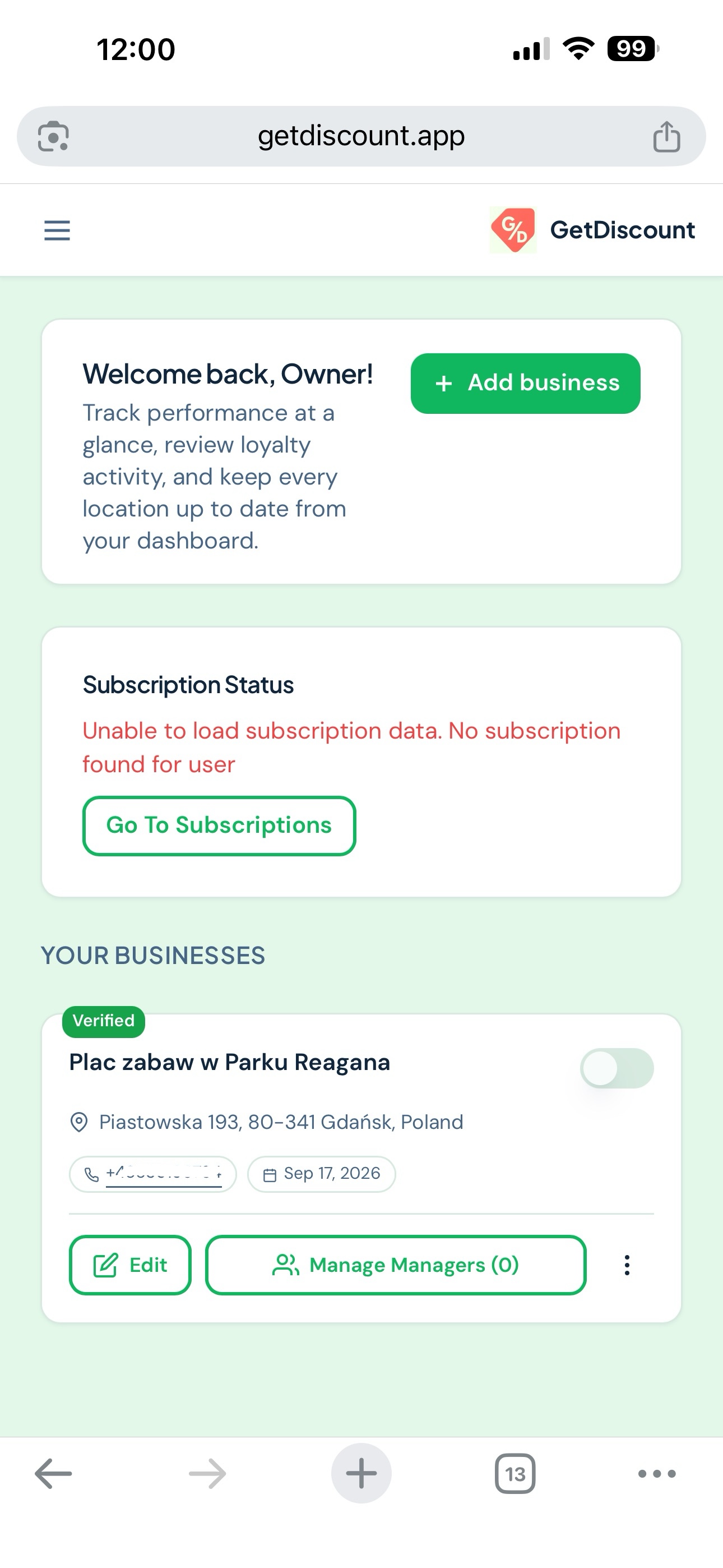 Web owner dashboard with the Go to Subscription button
Open Available Plans
On the web subscription page, review the subscription details and click Subscribe Now to see the available plans.
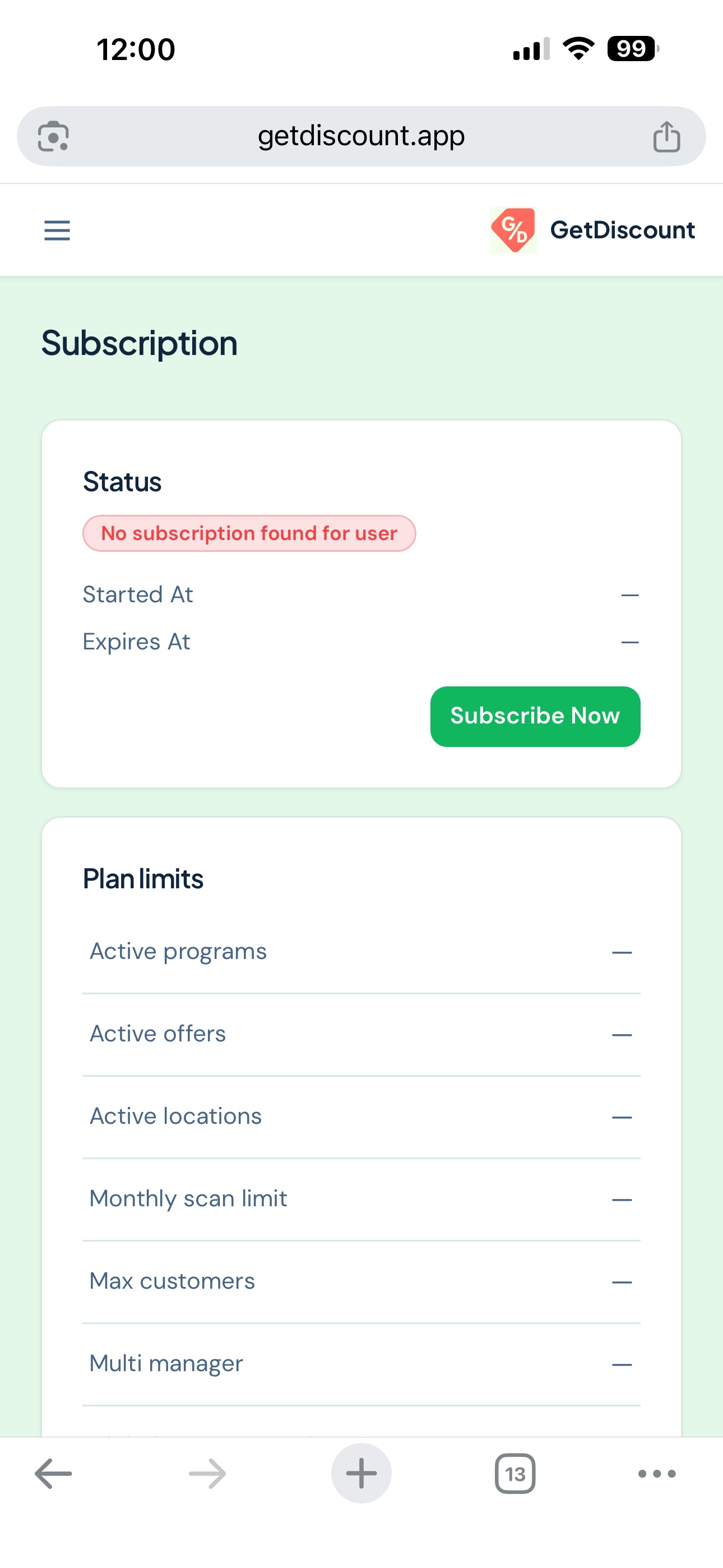 Web subscription details page with Subscribe Now
Select the Right Plan
Review the available plans, choose the plan that suits your business, and click Pay.
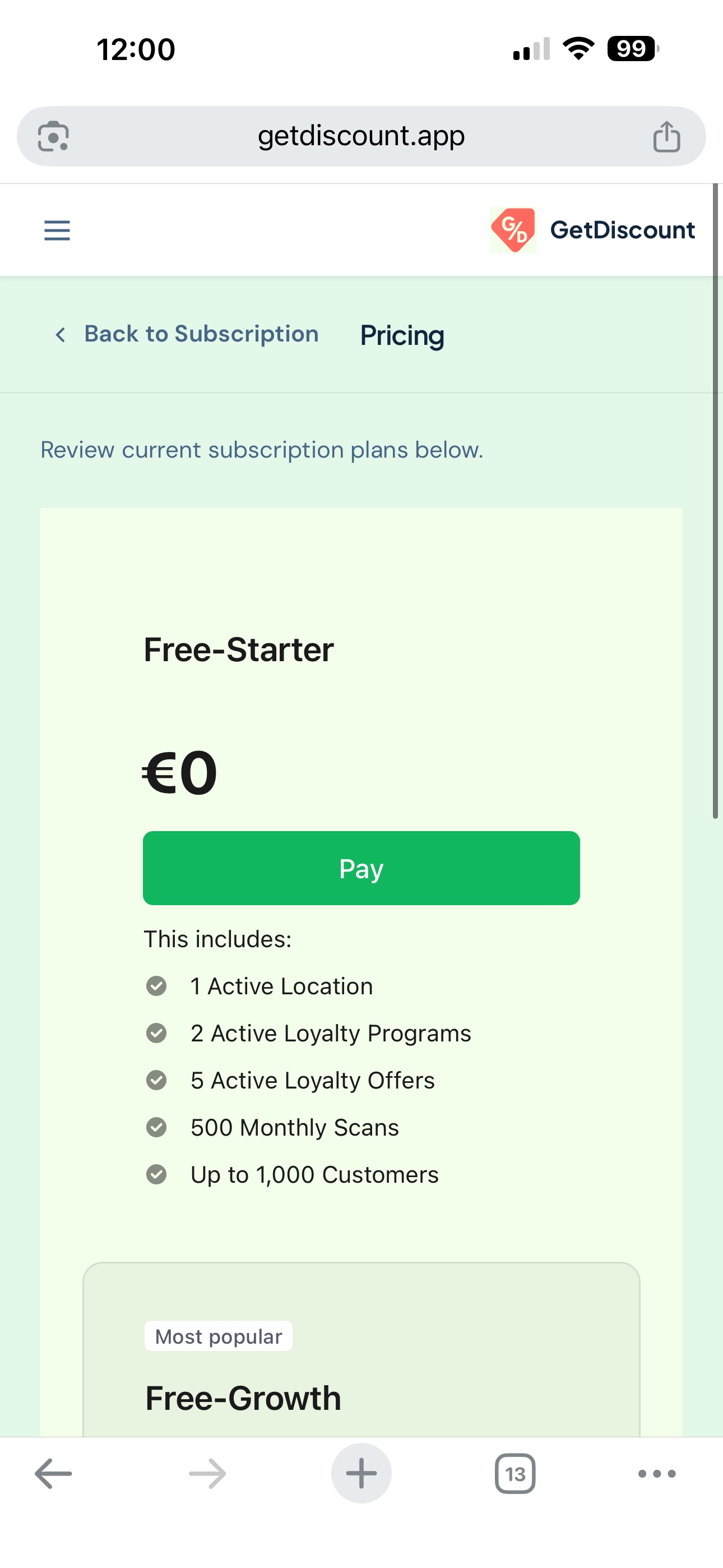 Plan selection page with payment actions
️ Complete the Order
Enter the email address to use for the order and complete the payment process.
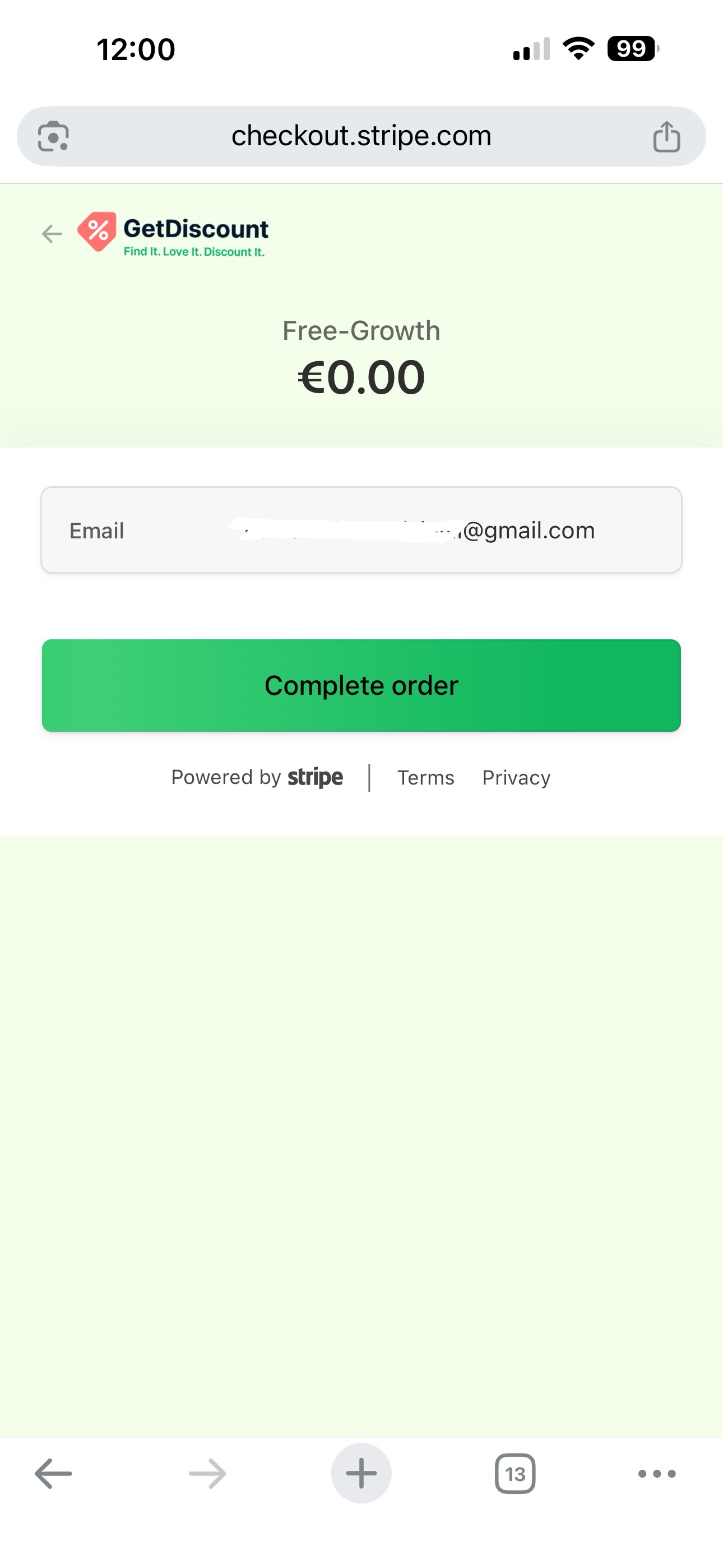 Order completion page requesting an email address
Confirm Your Subscription
After successful payment, the web portal shows a subscription confirmation.
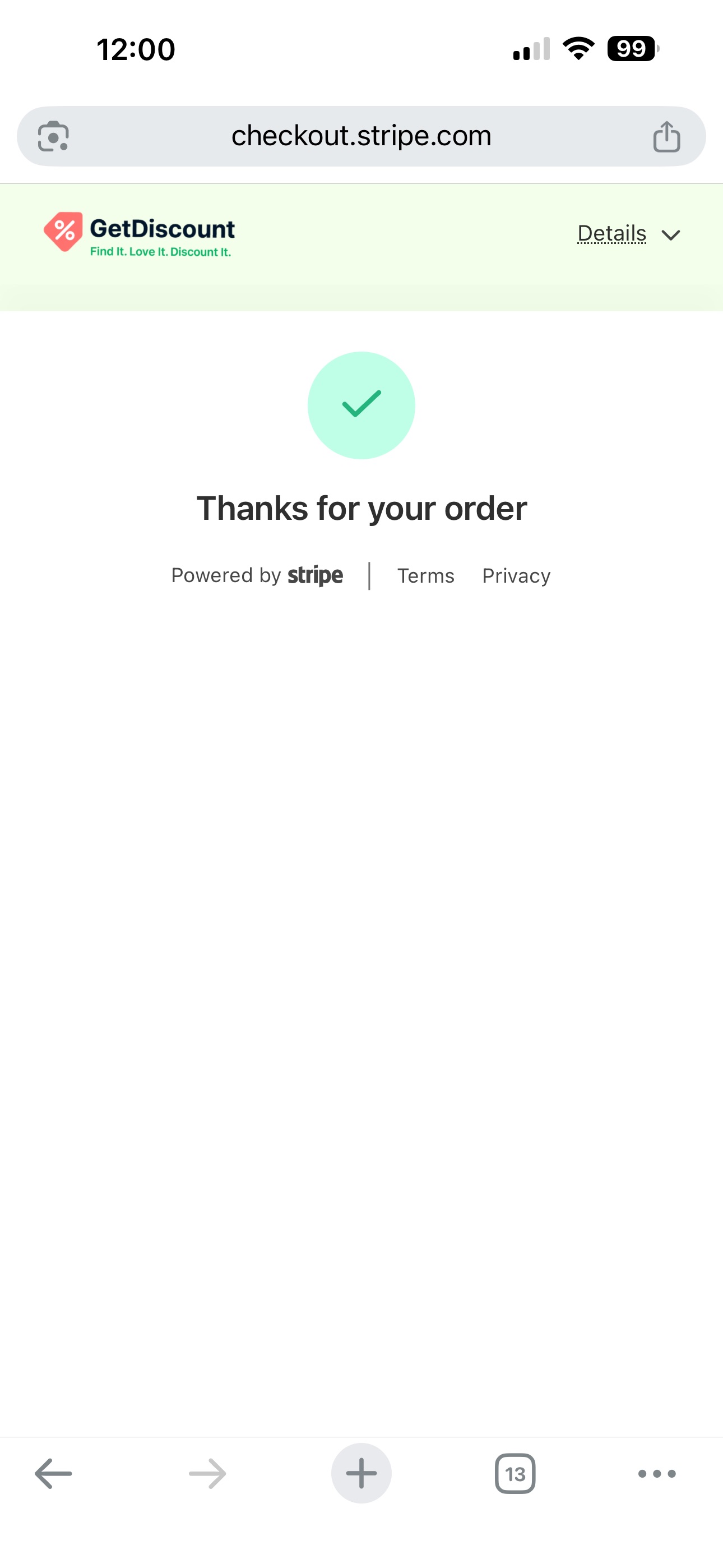 Web subscription success confirmation
Check Your Assigned License
Return to the GetDiscount mobile app and open the subscription page again. It now shows the license details assigned to your business.
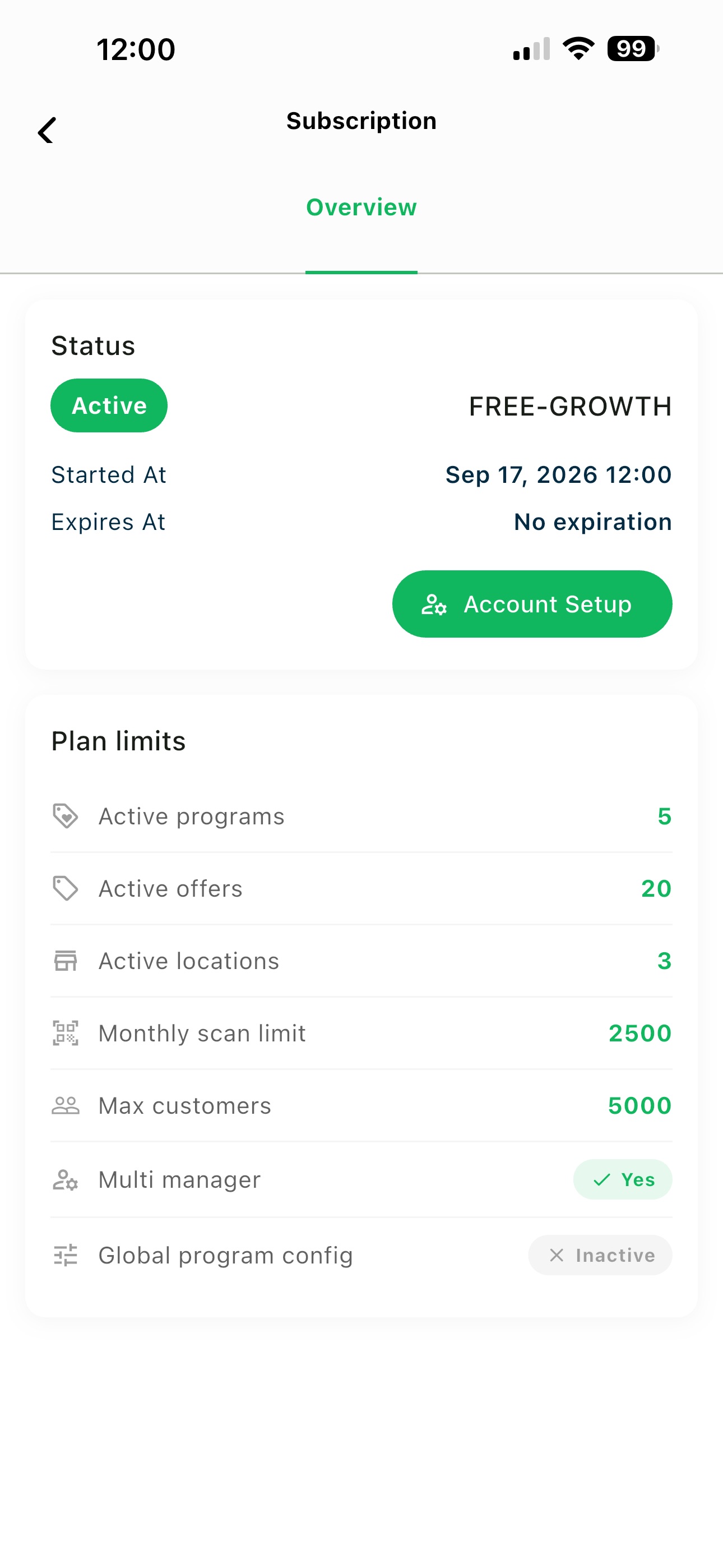 Mobile subscription page showing the assigned license
Continue from the Owner Dashboard
Tap the back button to return to the owner home screen. Your business now has an active license and you can continue with business owner setup.
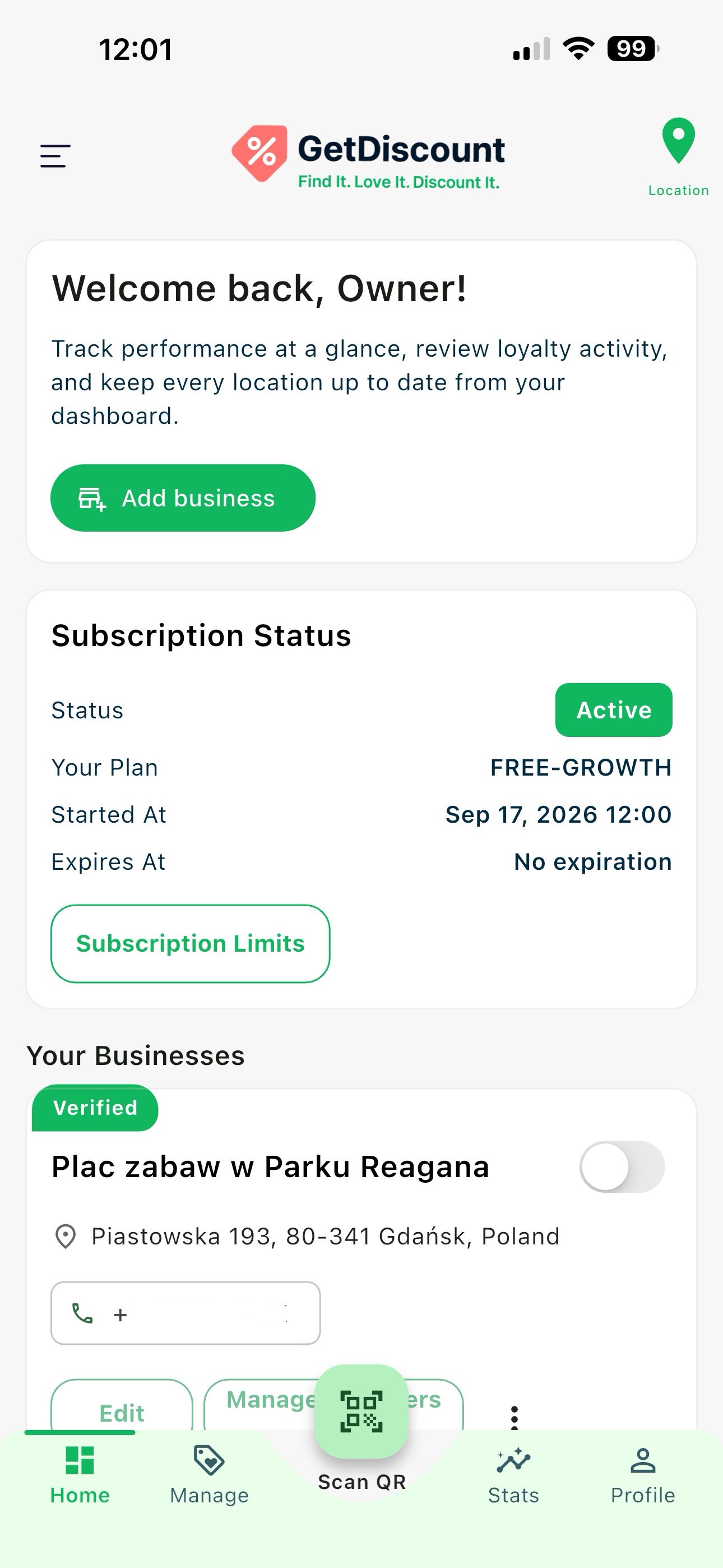 Owner home screen with an active subscription
💡 Next step: With an active license, you can create your first loyalty program or offer.
| Problem | What to do |
|---|---|
| A license-required message appears | Open the subscription page and complete Account setup through the web portal. |
| The mobile app says web setup is required | Copy the provided URL or open getdiscount.app/login in a browser. |
| Your business is missing after web login | Confirm that you signed in with the same business owner account used in the mobile app. |
| License is not displayed in the app after purchase | Return to the mobile subscription page and allow it to refresh; verify the order completed successfully on the web. |
| Business operations are still unavailable | Confirm the license is active, then return to the owner dashboard and retry the operation. |
Need help? Visit our Support page.