
Create a Program or Offer
Once your business has an active license, create a loyalty program or offer from the Manage screen. The creation flow is the same for both item types.
GetDiscount lets businesses create loyalty programs and offers from configurable templates instead of starting from scratch. The same guided workflow works for both item types and supports businesses across many categories. Choose a template, create it in one of 32 languages, then tailor its rewards, customer rules, availability, and terms to your business.
Make sure your business has an active license and is enabled before creating a program or offer.
⚠️ Important: New programs and offers are disabled by default. Complete this guide, then enable the item and the business before customers can see it.
️ Choose Programs or Offers
From the owner home screen, open Manage. The screen has two tabs: Programs and Offers. Select the type of item you want to create, then tap the create button.
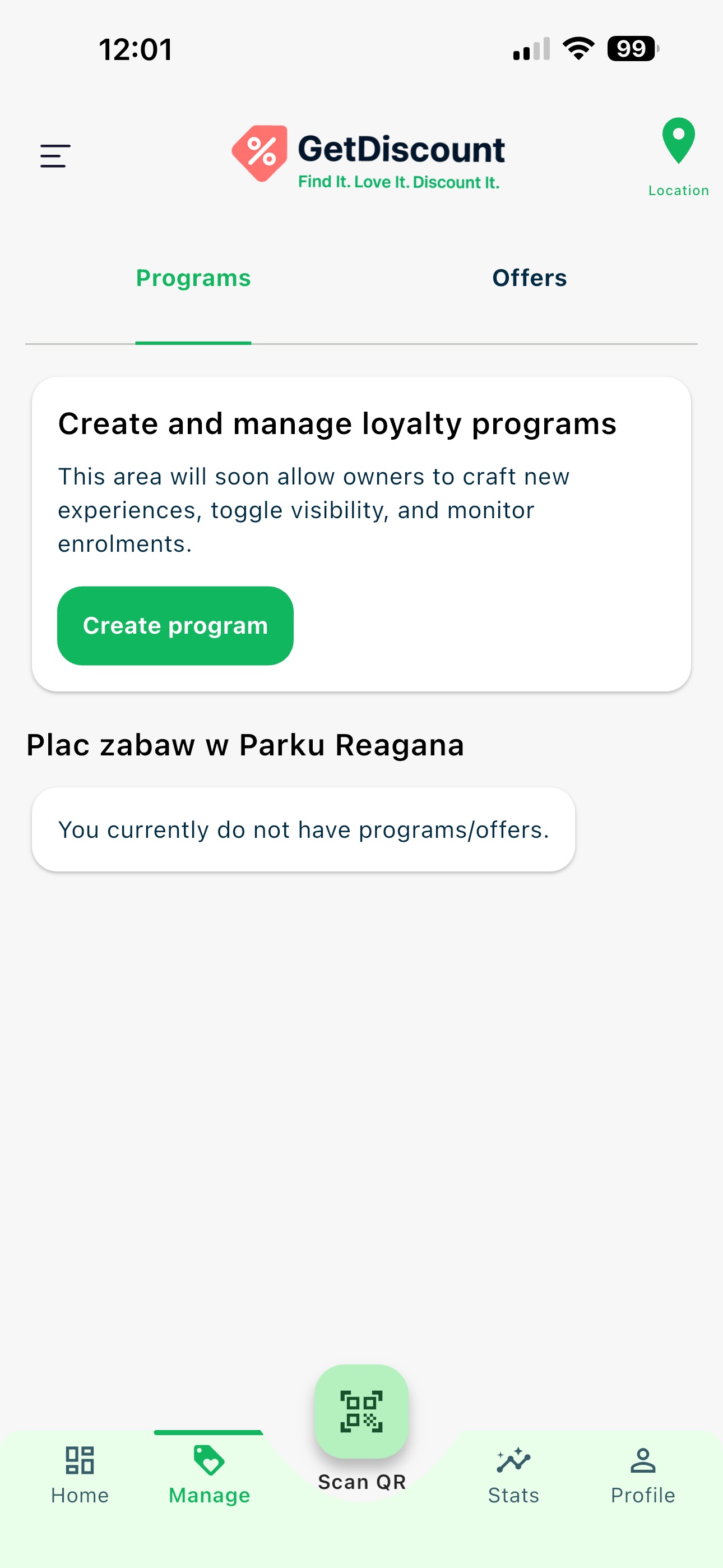 Manage screen with Programs and Offers tabs
💡 Tip: The workflow, templates, options, and activation steps are the same whether you create a Program or an Offer.
Select the Business
Choose Create Program or Create Offer, select the business that will own the item, then confirm your selection.
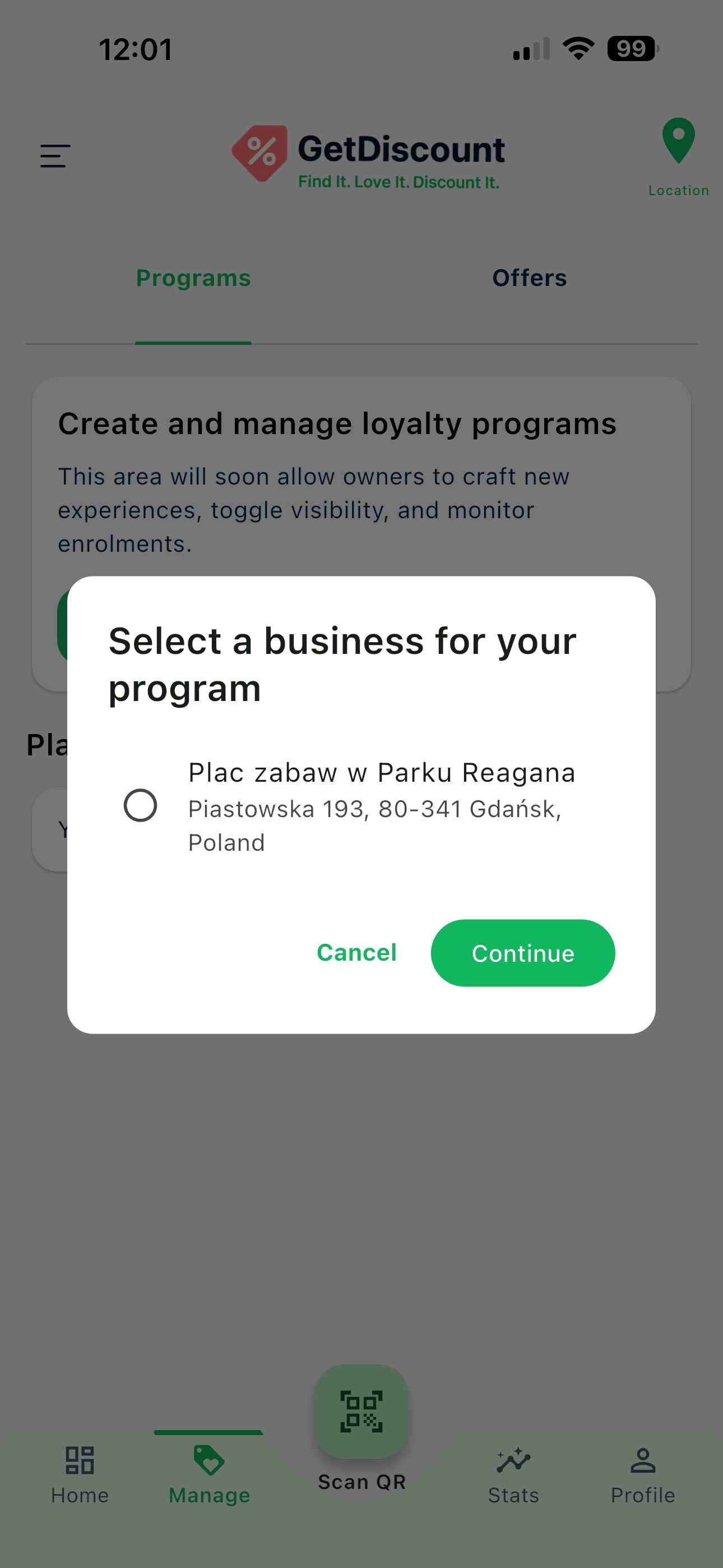 Dialog for selecting a business before creating a program or offer
Choose a Template and Language
GetDiscount opens the template library after you select a business. Browse the available templates, read their descriptions and examples, and choose the template that fits your goal.
Programs and offers can be created in 32 languages. Select the language customers should see before continuing.
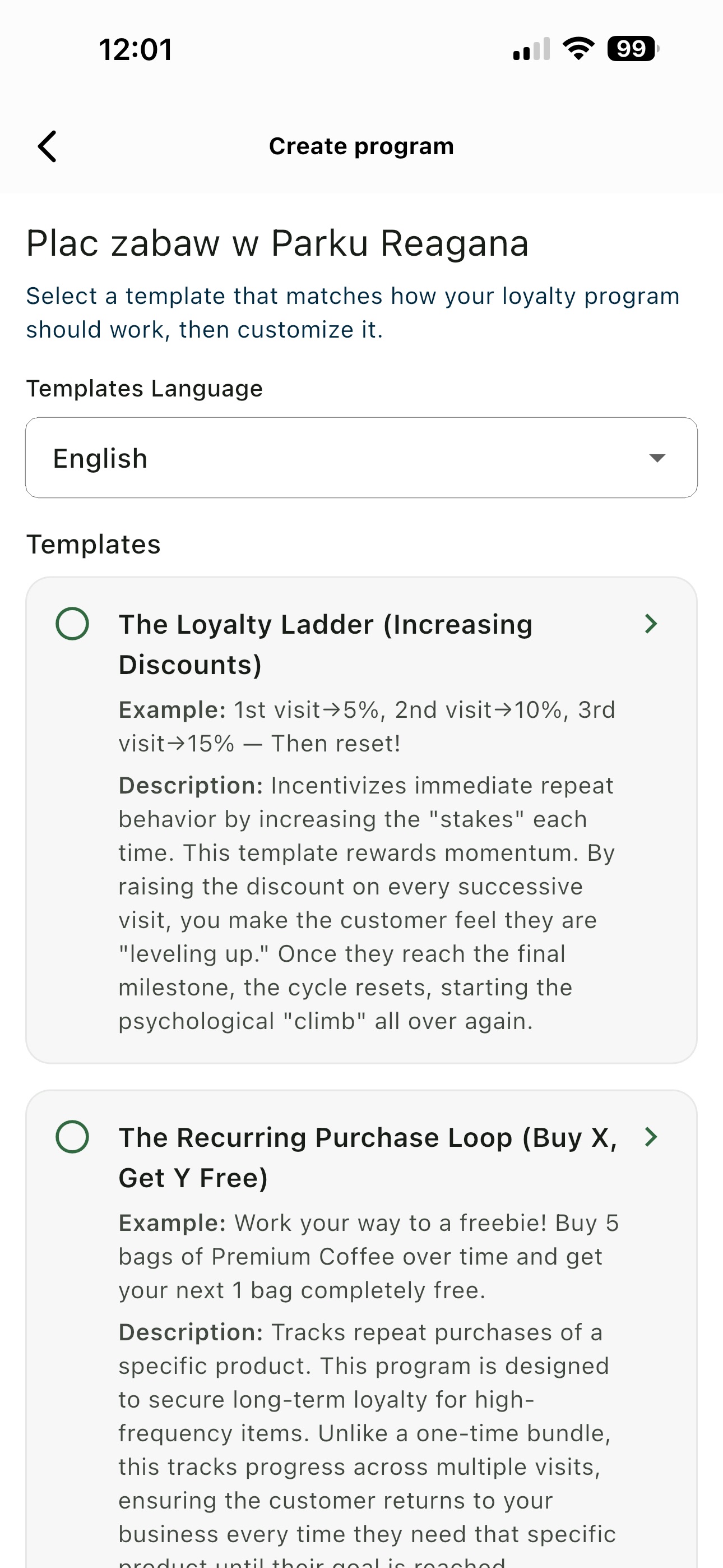 Template library with language selection
️ Configure the Template
After selecting a template, GetDiscount opens it with predefined values. Update the content and settings to match your business and the reward or promotion you want to run.
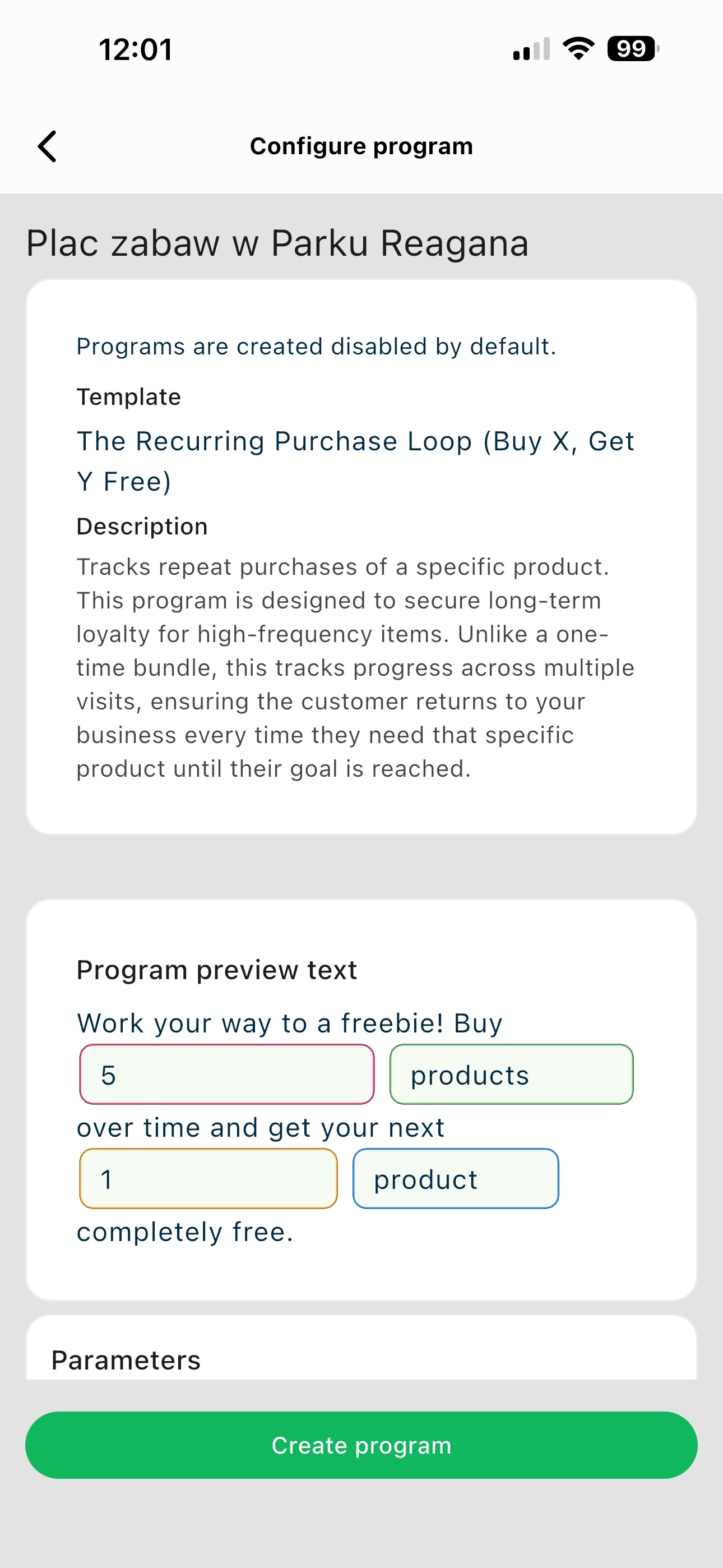 Template configuration screen with default values
Update Program or Offer Values
Edit the template fields to define the promotion for your business. Review each value carefully so the customer-facing details are accurate before moving to the next settings.
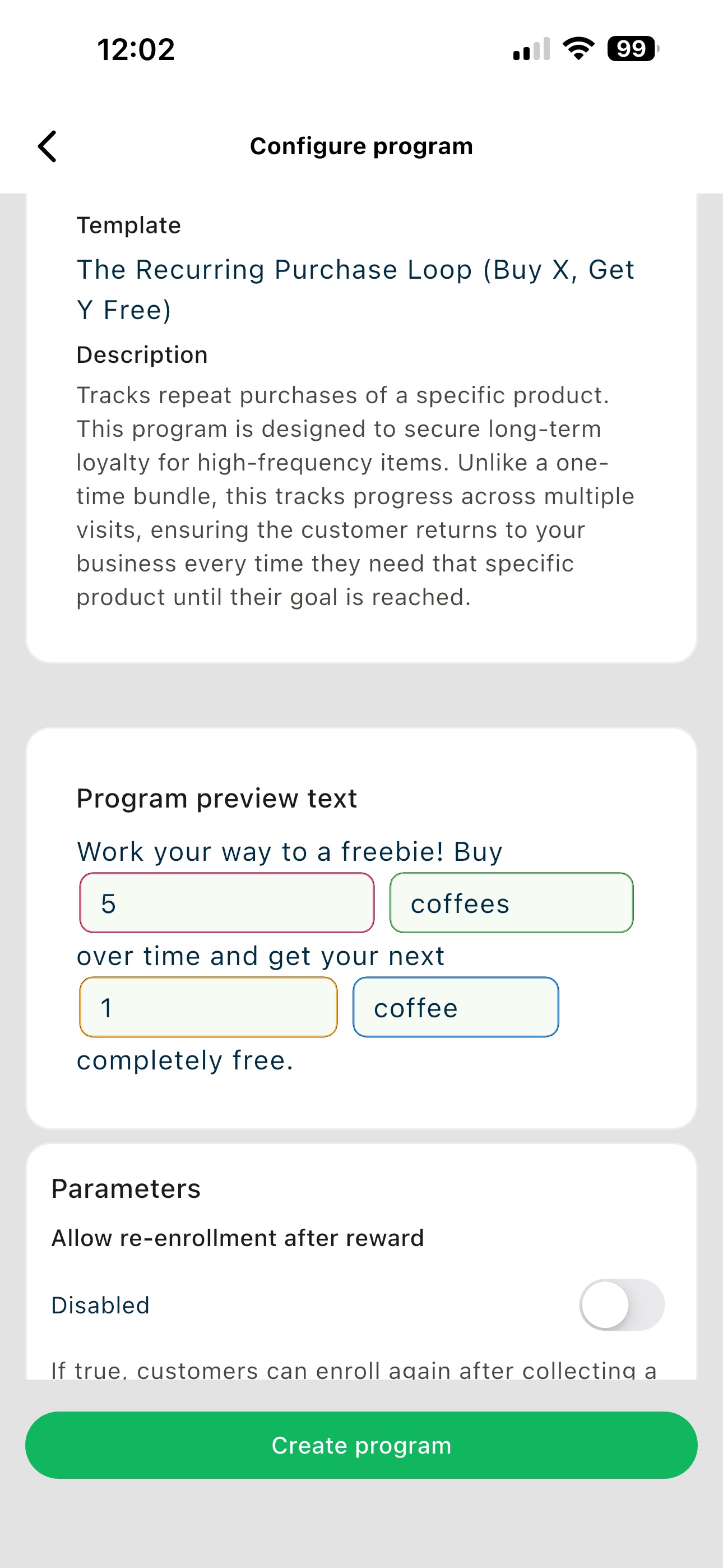 Template configuration with updated values
Decide on Re-enrolment
The Allow re-enrolment option lets a customer join the same program again after completing its required steps and collecting the reward.
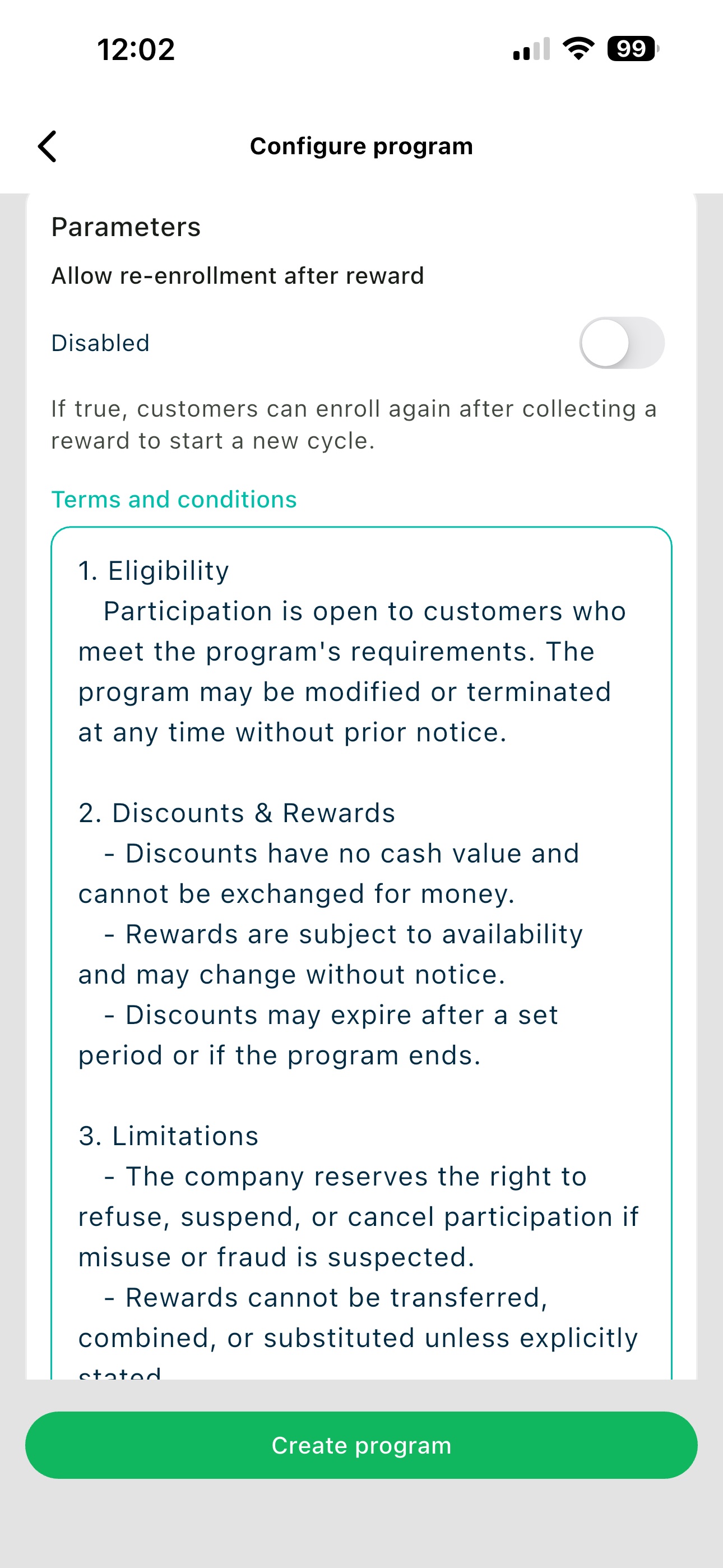 Template options including Allow re-enrolment and Terms and Conditions
💡 Recommendation: Keep Allow re-enrolment disabled unless your marketing plan specifically requires repeat enrolment. The appropriate choice depends on the program and your business goals.
Review Terms and Conditions
The same options screen includes a Terms and Conditions text field. GetDiscount provides a prepared policy that covers the usual basics. Review it before publishing and add any business-specific rules that apply to this program or offer.
⚠️ Important: You are responsible for ensuring the terms match your promotion and local legal requirements. The provided text is a useful starting point, not a substitute for your own rules when additional conditions apply.
Set the Availability Period
At the bottom of the configuration, you can choose the dates when customers may use the program or offer.
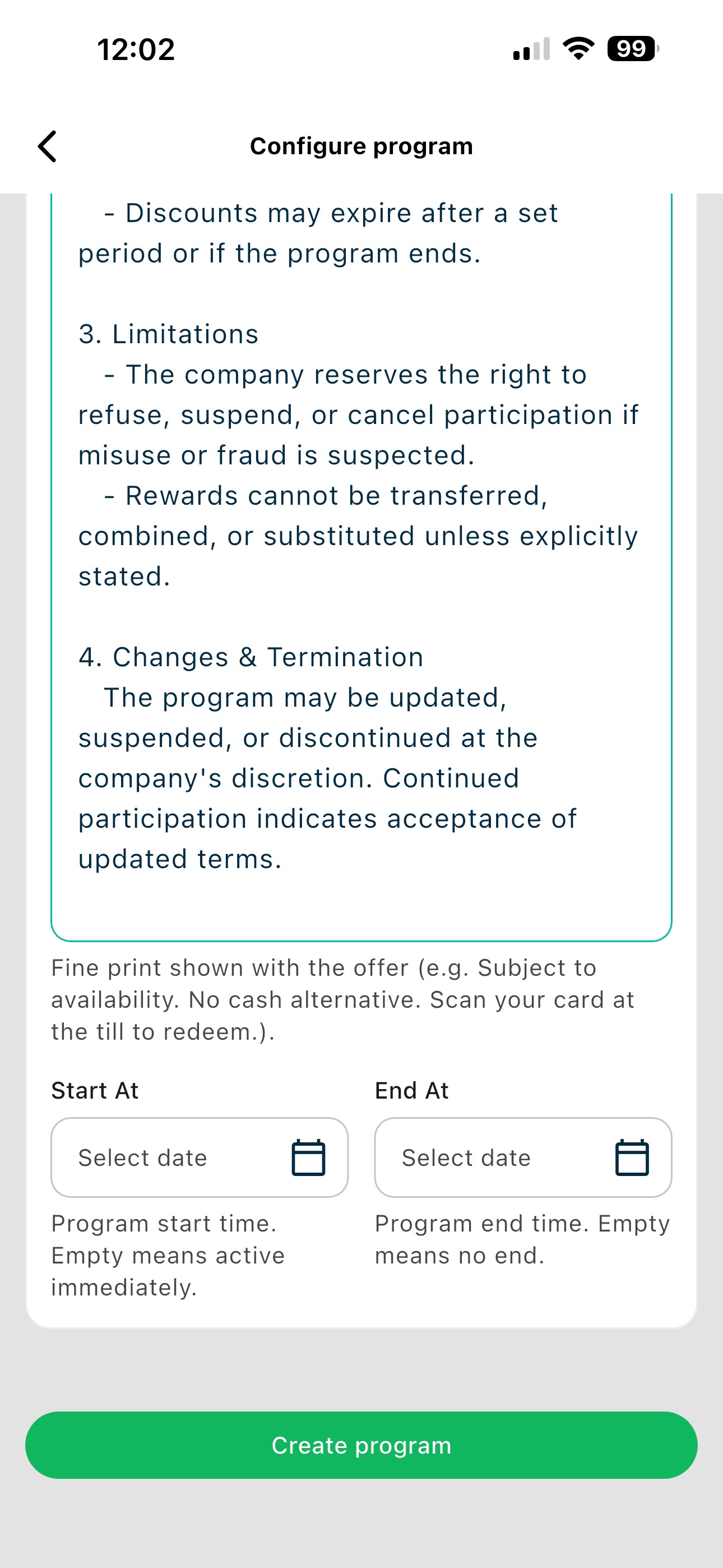 Availability period settings near the bottom of the template form
We recommend a duration of at least one month when you set dates. In most cases, leave both fields empty: the item starts immediately and has no end date. You can disable it any time from the Manage screen.
Create the Program or Offer
Tap Create Program or Create Offer to return to the Manage screen. The new item appears in the appropriate tab.
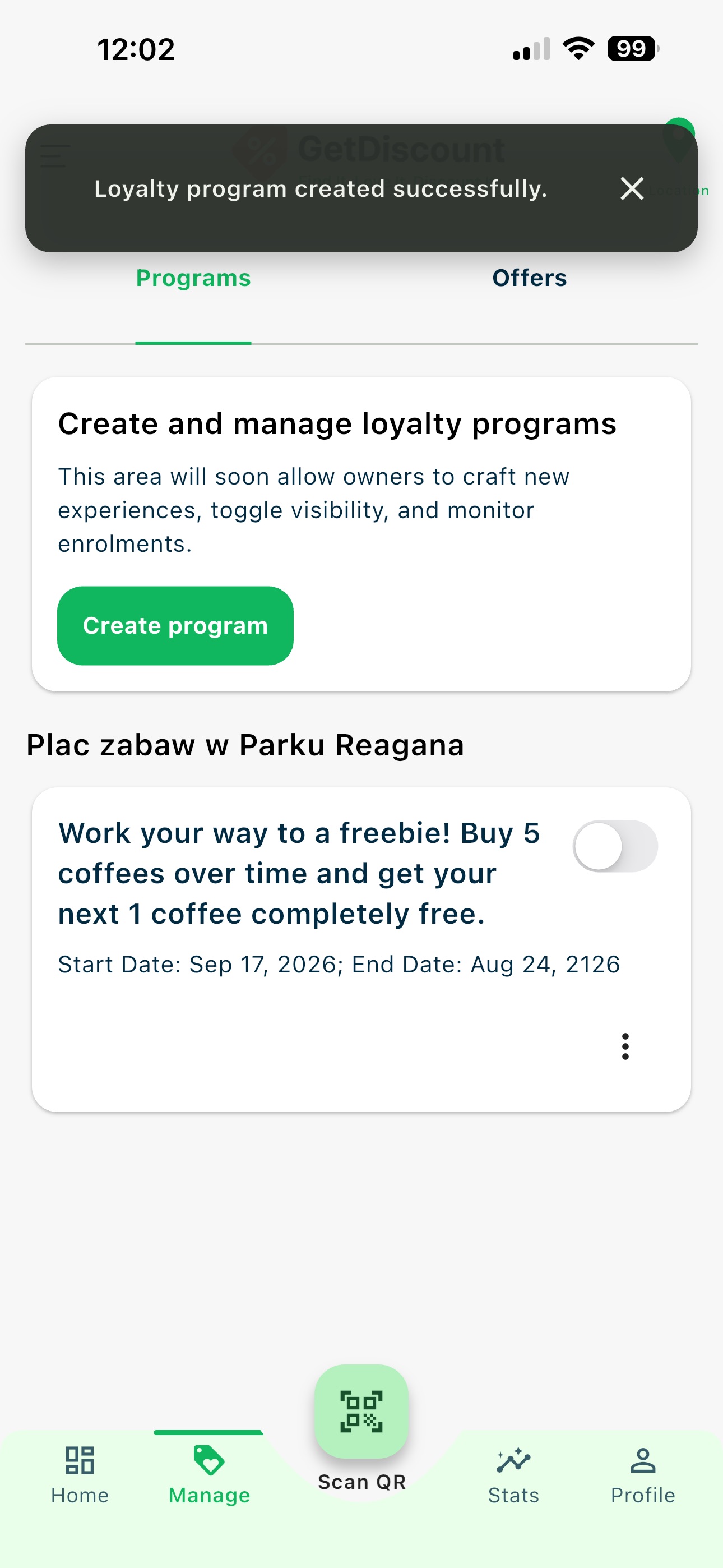 Manage screen with the newly created program
⚠️ Important: Newly created programs and offers are disabled by default. Use the three-dot menu to delete an item if needed.
Enable It
Turn on the enable toggle next to your new program or offer. Its status changes to active.
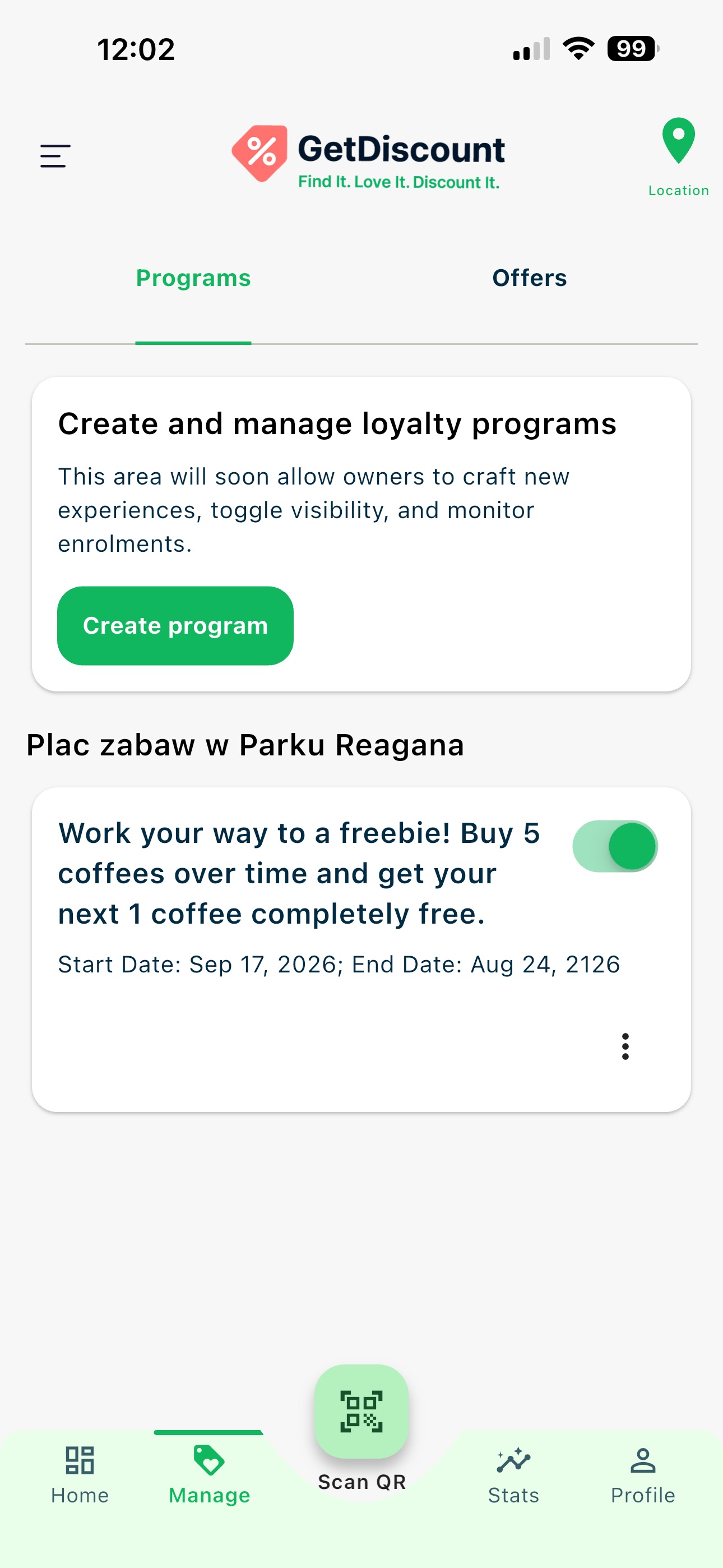 Manage screen with an enabled program
Enable the Business
An active program or offer also requires an active business. On the owner home screen, turn on the toggle for the relevant business.
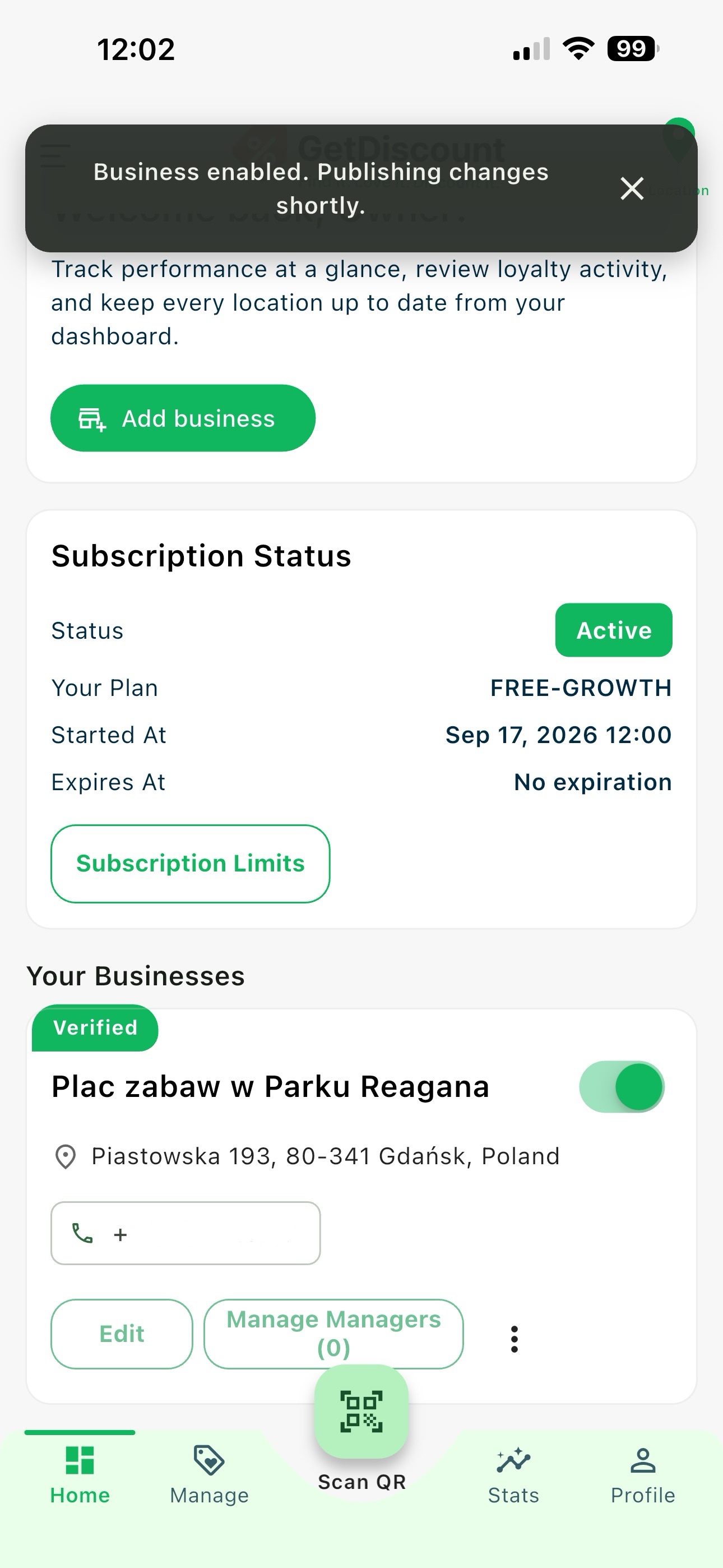 Owner home screen with the business enable toggle
Switch to Client Mode
Open your Profile screen and tap Client Mode to view GetDiscount as a customer.
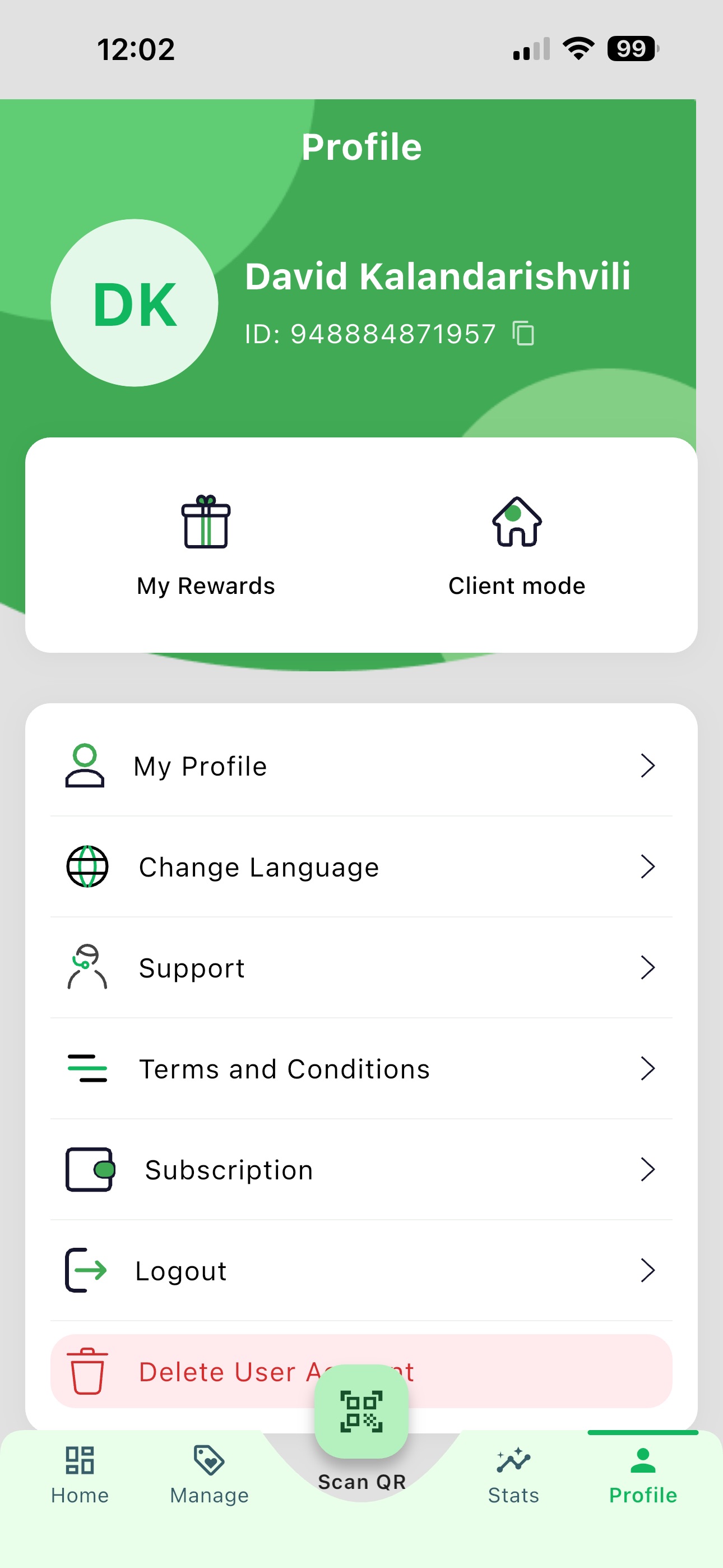 Business owner Profile screen with the Client Mode button
Check Around You
In Client Mode, open the Around You screen. Your enabled business and its active program or offer should be available to customers in this view.
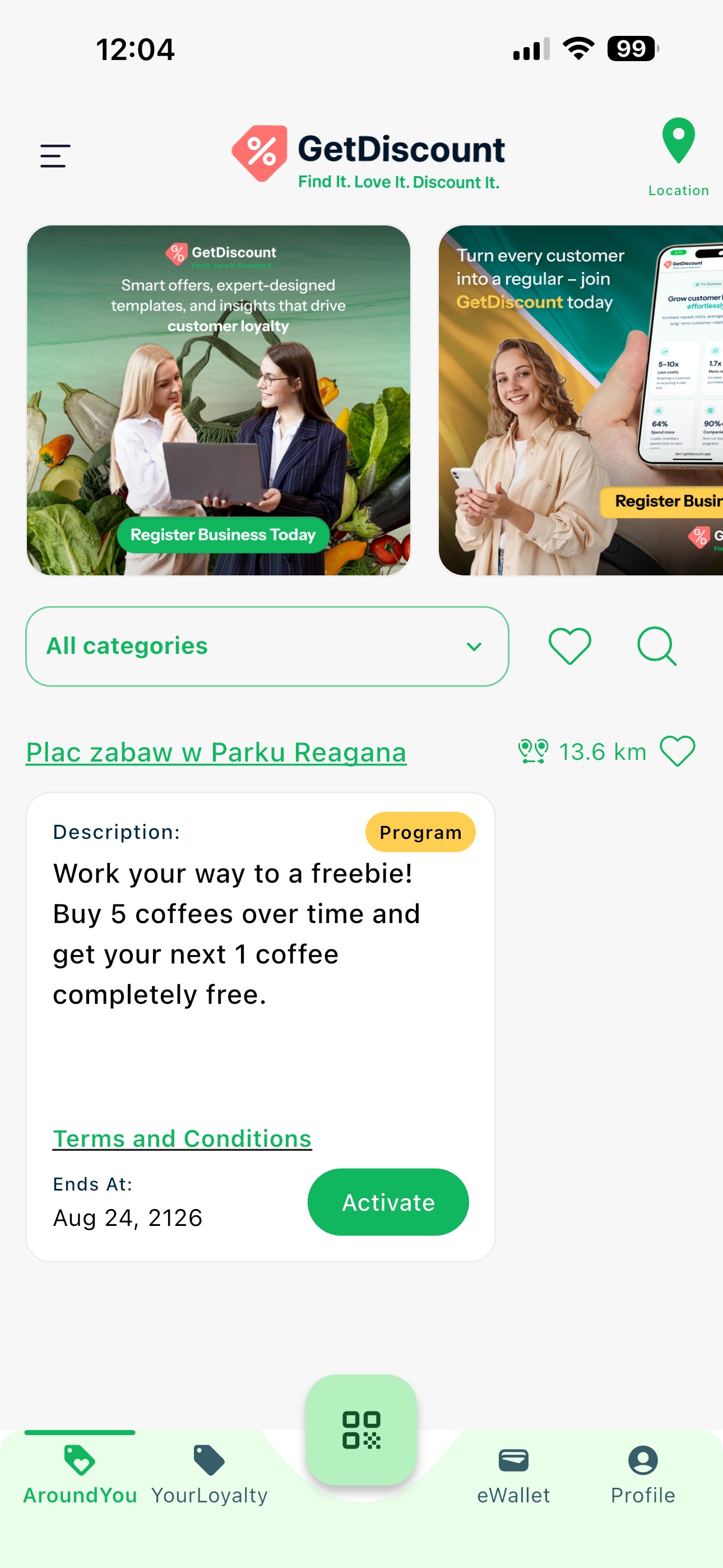 Client Around You screen showing available businesses and programs
| Problem | What to check |
|---|---|
| Cannot create a program or offer | Confirm your business has an active license. |
| The item does not appear for customers | Enable both the program or offer and its business. |
| A customer cannot enrol again | Review the Allow re-enrolment option in the item settings. |
| The item is unavailable | Check its selected availability dates or leave both dates empty for immediate, ongoing availability. |
| The terms need extra rules | Update the provided Terms and Conditions text with business-specific conditions before activation. |
Need help? Visit our Support page.